Workspaces and projects
A workspace holds your projects and the environments they share. Everything in it lives in plain files you can read, diff and commit. A project is one API — SOAP, REST or gRPC — with its interfaces or definitions, requests, and attachments. A workspace usually holds several projects.
The workspace picker
Section titled “The workspace picker”Wirebench opens the workspace picker whenever no workspace is open — on first launch, or after you delete the one you had open. It lists every workspace on disk, with its project count and when you last opened it, and offers a name field to create another.
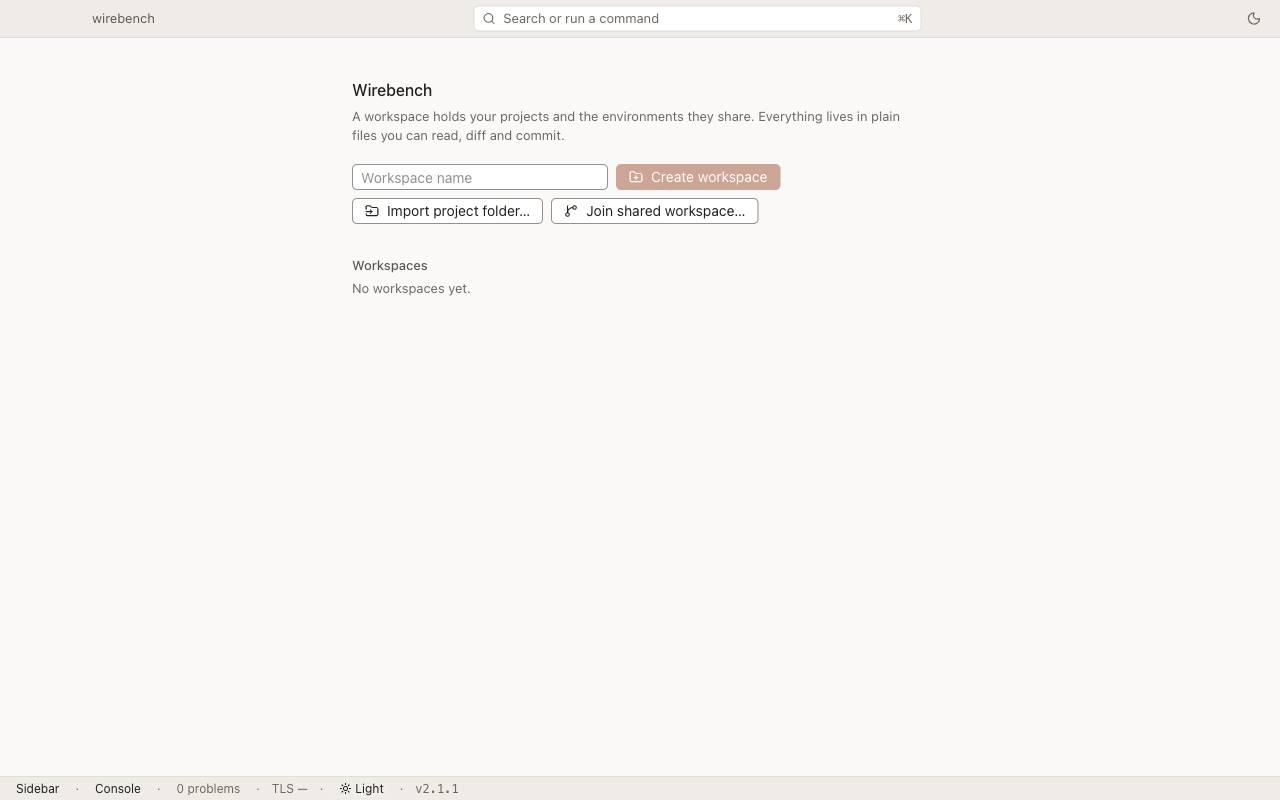
From the picker you can also Add project folder… (copies a project folder into a new workspace named after it) and Join shared workspace… (see Shared workspaces).
Create a workspace
Section titled “Create a workspace”- On the picker, type a name in Workspace name.
- Choose Create workspace, or press Enter.
Once a workspace is open, Create workspace… is also on the workspace switcher — the dropdown next to the workspace name in the title bar — and on the command palette, alongside Manage Workspaces….
Switch workspaces
Section titled “Switch workspaces”Open the workspace switcher (the dropdown next to the workspace name in the title bar) and choose another workspace from the list. Each row shows a folder or branch glyph when that workspace is shared. A workspace that cannot be read is disabled in the list, with the reason in its tooltip.
Several workspaces at once
Section titled “Several workspaces at once”New Window (⌘⌥N / Ctrl+Alt+N, also in the File menu) opens another window at the workspace picker. Each window holds its own workspace, so two can sit side by side: edits, saves, sync, the active environment, cookies, current values and History in one window are not the other’s.
A workspace is open in one window at a time. Choosing one that another window holds brings that window forward instead. Closing a window keeps its unsaved changes exactly as quitting does: they come back, still unsaved, the next time that workspace opens. On the next launch, Wirebench reopens the workspace you opened last.
Manage workspaces
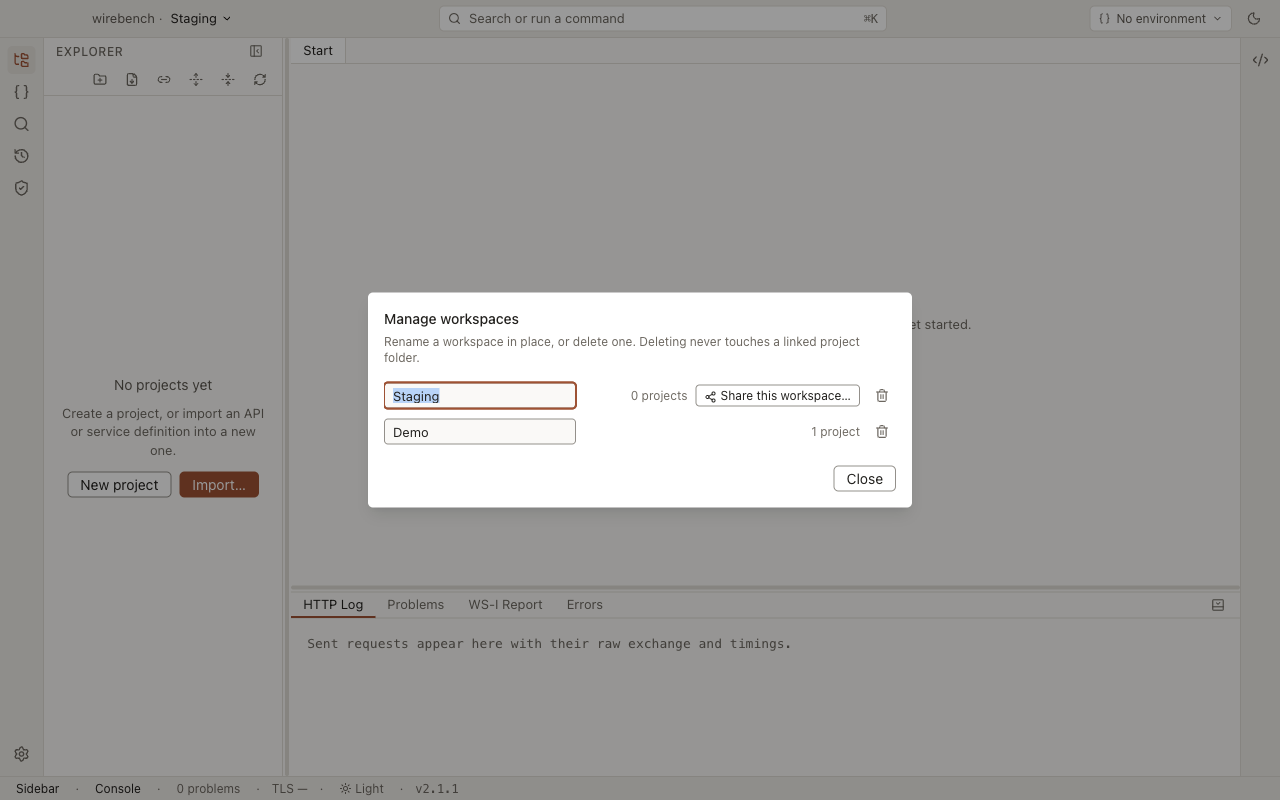
Section titled “Manage workspaces”Manage workspaces… (from the switcher) lists every workspace with its folder and project count. From here you can:
- Rename a workspace in place — type into its name field and press Enter or click away.
- Share this workspace… or Stop sharing — see Shared workspaces.
- Delete a workspace.
Add a project
Section titled “Add a project”New Project… (⌘⇧N / Ctrl+Shift+N) creates an empty project inside the
open workspace — just a name; its folder is the workspace’s own projects/<slug>/. From there,
import a WSDL or an OpenAPI document into it, or build requests by hand. See
importers.
Remove a project
Section titled “Remove a project”Right-click a project in the explorer and choose Remove Project from Workspace…. What happens next depends on how the project got here:
- An internal project (created in the workspace, or imported into it) offers to move its folder to the trash — on by default.
- A linked project’s folder is never touched; the dialog says so and removing it only takes the project out of the workspace.
Removing always asks for confirmation first.
Link an existing project folder
Section titled “Link an existing project folder”Link Project Folder… adds a project folder from anywhere on disk to the workspace without copying it — Wirebench reads and writes it in place. Use this when a project’s files need to stay where they are, for example under their own version control outside the workspace.
Add a project folder
Section titled “Add a project folder”Add Project Folder to Workspace… copies a project folder into the open workspace (or, run from the picker with no workspace open, into a new workspace named after the folder). Unlike linking, the files become the workspace’s own copy.
The picker also remembers project folders you opened before Wirebench had workspaces, listed under Project folders you opened before — click one to import it the same way.
Export a project
Section titled “Export a project”Right-click a project and choose Export Project… to write it out to a folder you pick, independent of the workspace it lives in.
Tabs across projects
Section titled “Tabs across projects”The editor’s tabs belong to the workspace, not to any one project: open a request from one project, then another from a different project, and both stay open side by side. Closing or reordering tabs, and which one is active, is remembered per workspace the next time you open it.
Related
Section titled “Related”- Shared workspaces — share a workspace with a team, sync, and resolve conflicts.
- Importers — WSDL, OpenAPI, cURL and legacy SOAP project import.
- Environments — variables and endpoints shared across a workspace’s projects.