Preferences and layout
Preferences hold everything that applies across projects — transport defaults, the theme, keyboard shortcuts — as opposed to a project’s own settings, which travel with the project file. Open Preferences with ⌘, / Ctrl+,, or from the command palette.
Sections
Section titled “Sections”Preferences is a list of sections on the left and that section’s form on the right. Every field commits as you change it (or on blur, for text and number fields); Reset section restores that section’s defaults without touching any other.
| Section | What it covers |
|---|---|
| HTTP | User-Agent, request/response compression, keep-alive vs. Connection: close, socket timeout, max connections, whether to offer HTTP/2, and the chunking threshold |
| Proxy | No proxy / system proxy / manual, with host, port, username, password, and a comma-separated exclude list (hosts, *.wildcards, CIDR blocks, localhost) |
| SSL | Minimum TLS version, a CA bundle to trust in addition to the system store, the default client keystore, how many days ahead certificate expiry warnings start, and why there’s no global “trust all certificates” switch |
| REST | Follow redirects and the maximum redirect chain length, the default Accept header, and the pretty-print size threshold — all floors a request’s own Settings tab can override |
| Git | The git executable Wirebench runs for shared workspaces: auto-detected, or located with a picker |
| WSDL | Definition caching and compression, strict schema handling, and defaults for generated requests (sample values, type comments, optional elements, pretty print) |
| WS-I | WS-I Basic Profile validation: the profile (currently BP1.1 only) and whether its report is verbose |
| Editor | Monaco’s font, tab size, line numbers, word wrap, validate-before-send, auto-format responses, and autosave |
| Secrets | How long a value fetched from a secret manager stays in memory |
| Terminal | Whether a multi-line paste into an SSH terminal asks first, and whether a selection is copied to the clipboard as soon as it is made |
| UI | Theme, the default request layout (side-by-side/stacked, split/tabs), delete confirmations, and how many history entries and HTTP Log rows to keep |
| Updates | Whether Wirebench checks GitHub Releases for a new version at launch |
| Mock services | Whether a mock listens on every network interface instead of this machine only |
| Accounts | Every server you’re known to, sign out or remove one, add another, and whether the status bar shows who you’re signed in as |
| Shortcuts | Every command’s keybinding, and a way to change it |
Proxy and TLS are live
Section titled “Proxy and TLS are live”Proxy and SSL preferences aren’t just stored for later — they’re read on every send. A proxy password goes through the same secret store as any other credential (see Secrets); the CA bundle path is set only through Browse…, which runs a native file picker, since Wirebench never trusts a path the interface alone claims.
On a managed machine, your organization can lock the proxy, the minimum TLS version, the CA bundle and update checks. Locked settings are read-only and marked Locked by policy; see Managed preferences.
Locating git
Section titled “Locating git”Preferences → Git only ever asks Wirebench to detect, locate, or clear the git executable — it
never lets you type a path directly. Detect looks for git where it would normally be found;
if that fails, or you want a different one, Browse… opens a native picker.
Accounts
Section titled “Accounts”Preferences → Accounts lists every server Wirebench knows about, each with its email, display name, device name, and whether it’s currently signed in. Per row, Sign out ends that session without forgetting the server, and Remove signs out and forgets it; Add server… opens the same sign-in dialog as the status bar item, to add another. See Sign in to a server for what signing in does and when Wirebench asks for it.
Show sign-in in the status bar (on by default) controls only whether the status bar’s account item appears once a server is known — the list of servers itself isn’t a preference; it lives wherever Wirebench keeps accounts, not in this preferences document.
Secrets
Section titled “Secrets”Secret source cache (seconds) is secrets.sourceCacheSeconds: how long a value fetched from an
external secret manager stays in memory. The default is 300 (5 minutes), and the range is 0 to 3600.
With 0, the value is fetched on every send. Values are never written to disk. A change to the
workspace’s secret mapping empties the cache too, and so does the Clear Secret Source Cache
command. See Secrets from external managers.
Terminal
Section titled “Terminal”Confirm multi-line paste is terminal.confirmMultilinePaste and is on by default: pasting text
with more than one line into an SSH terminal first shows its opening lines, because a pasted script
runs line by line. A single trailing newline does not count as a second line. Ticking Don’t ask
again in that prompt turns the preference off. Copy on select is terminal.copyOnSelect and is
off by default.
Preferences → UI → Theme switches between Dark, Light, and Follow the system.
Rebinding shortcuts
Section titled “Rebinding shortcuts”- Open Preferences → Shortcuts. Every command is listed with its category, its default binding, and its current one.
- Click a row’s shortcut cell to start recording, then press the key combination you want. Escape cancels without changing anything; Backspace leaves the command unbound.
- If the combination isn’t safe to rebind, the row shows why instead of accepting it.
- Reset all restores every command to its default binding.
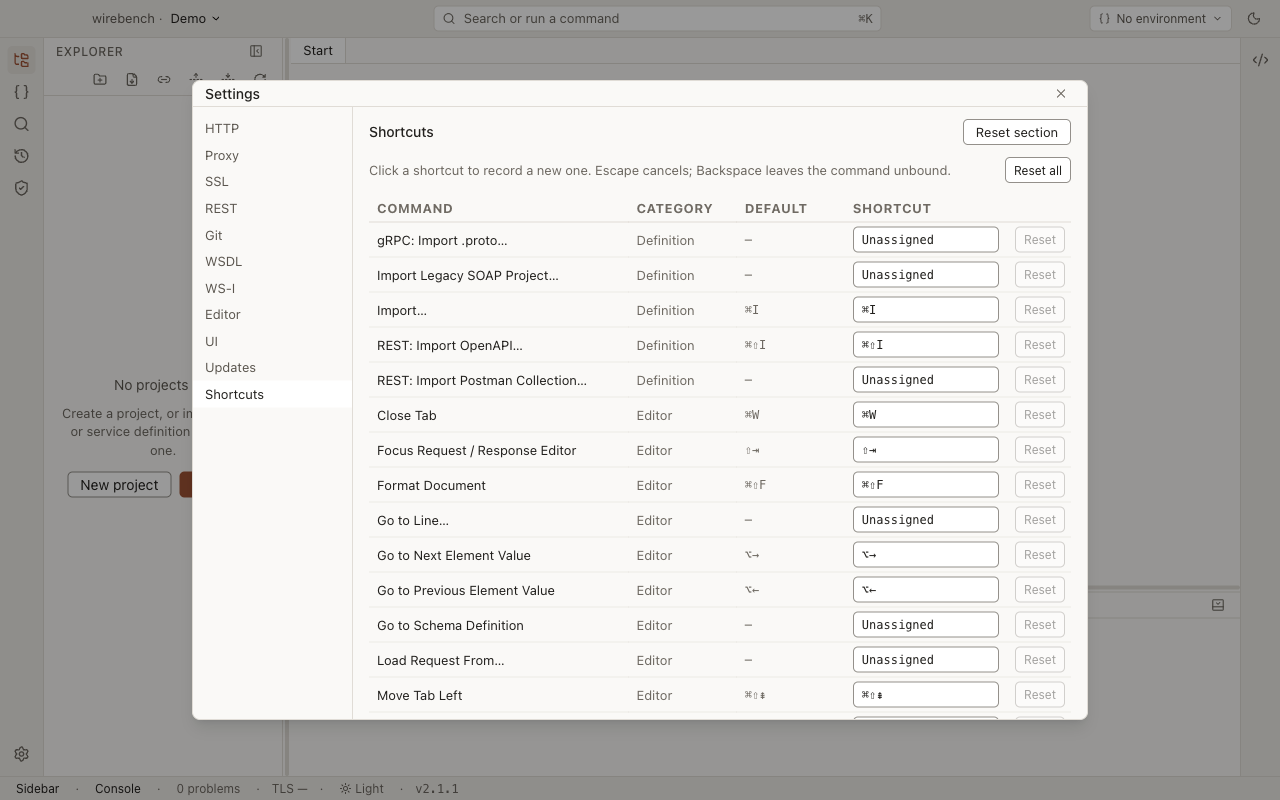
A rebind takes effect immediately and is remembered across restarts. Some defaults you’ll see listed: ⌘K / Ctrl+K for the command palette (also ⌘⇧P / Ctrl+Shift+P), ⌘P / Ctrl+P for quick open, ⌘I / Ctrl+I for Import, ⌘S / Ctrl+S to save, ⌘⏎ / Ctrl+Enter to send, and ⌘, / Ctrl+, for Preferences itself. The full, generated list is in Commands and shortcuts.
Layout
Section titled “Layout”The window is split into panels — the activity bar, the sidebar (Explorer, Environments, WSS, and so on), the editor area, and the console (History, HTTP Log, Problems) — each with a handle between it and its neighbor.
- Drag a handle to resize the panel next to it. Dragging past its minimum size collapses the panel instead of shrinking it further.
- Double-click a handle to collapse the panel, or to restore it to the size it had before — the handle’s own label switches between “Resize” and “Show” so you can tell which it will do.
- With a panel collapsed, click its icon in the activity bar (for the sidebar) to reopen it at its previous size.
Collapsing the console never takes the editor area down with it, and the reverse holds too — each panel’s collapse is independent.
Related
Section titled “Related”- Secrets — how the proxy password and other credentials in Preferences are stored.
- Authentication — client keystores and the CA bundle, in context.
- Commands and shortcuts — the full generated shortcut reference.