Importing APIs
Importing turns something you already have — a WSDL, an OpenAPI document, a Postman collection, a
HAR capture of recorded traffic, a .http request file, an OpenCollection, a curl command, a .proto file, a running gRPC server, or a whole legacy SOAP project — into
requests you can run and edit in Wirebench. Most formats share one dialog; cURL has its own,
smaller one.
| Format | Opens | Starts from |
|---|---|---|
| WSDL (SOAP) | Import dialog | URL, file or pasted XML |
| OpenAPI / Swagger | Import dialog | URL, file or pasted YAML/JSON |
| Postman Collection | Import dialog | File or pasted JSON |
| Postman Collection v3 (folder) | Import dialog | A folder (Folder…), its .resources/definition.yaml, or a workspace folder |
| Postman environment or globals | Import dialog | File or pasted JSON |
| HAR (recorded traffic) | Import dialog | File or pasted JSON |
| .http file | Import dialog | File or pasted text |
| HTTP client environment file | Import dialog | File or pasted JSON |
| OpenCollection | Import dialog | File (a document, or a folder’s opencollection.yml) or pasted YAML |
| .proto (gRPC) | Import dialog | URL, file, pasted text, or a running server |
| Legacy SOAP project | Import dialog | File only |
| cURL command | Import cURL dialog | Pasted command |
The Import dialog
Section titled “The Import dialog”-
Press ⌘I / Ctrl+I, or run Import… from the command palette (⌘K / Ctrl+K). From a project or API row’s context menu, Import… opens the same dialog.
-
Choose a source tab: URL, File, or Paste. When the format is gRPC, a fourth tab, Server, asks a running server to describe itself instead of reading a document.
-
Leave Format on Auto-detect, or pick one explicitly: OpenAPI / Swagger, Postman Collection, Postman Collection v3 (folder), Postman environment, Postman globals, HAR (recorded traffic), .http file, HTTP client environment file, OpenCollection, WSDL (SOAP), Protocol Buffers (gRPC), or Legacy SOAP project. With auto-detect, a badge shows what was recognized, for example “WSDL / SOAP” or “OpenAPI 3.1.0”.
-
Pick Into project — an open project, or New project “…”. Postman environments and globals, and HTTP client environment files, land in the workspace, so the dialog does not ask.
-
Choose Import.
-
Open Import…, paste the WSDL URL on the URL tab (or pick a
.wsdl/.xmlfile, or paste the XML), and leave the format on auto-detect or set it to WSDL (SOAP). -
On the URL tab, optionally set Definition authentication. Basic asks for a username and password to fetch the document. Kerberos uses your signed-in ticket, with an optional SPN; its token goes only to the WSDL’s own origin, never to a redirect target on another origin. Use these credentials for requests too carries either onto the interface’s requests as well.
-
Choose the target project and Import.
What arrives: the service’s bindings and operations, each with a generated Request 1 envelope.
Anything the WSDL imports or includes is fetched and cached beside the project, so the interface
works offline afterwards. If the import finds problems, they are listed with a link to Show in
Problems.
OpenAPI (and Swagger)
Section titled “OpenAPI (and Swagger)”Wirebench reads OpenAPI 3.0, 3.1 and 3.2, and Swagger 1.x, 2.0 and 3.x, in YAML or JSON.
-
Open Import… (or press ⌘I / Ctrl+I) and give the document by URL, file or paste.
-
For a document behind authentication, fill in Authentication under the URL: Basic, a Bearer token, an API key in a header or the query string, or Kerberos. The password, token or key is kept in your operating system’s keychain; the project only records a reference to it.
-
Optionally set Name and Base URL overrides, and Cache specification documents with the project to keep a copy alongside the project.
-
Choose the target project and Import.
The credentials go only to the document’s own origin — its scheme, host and port. A redirect or a
$ref to another origin is fetched without them, and a query key never appears in the recorded
source, a progress message or an error. A server that answers 401 or 403 is reported as needing
authentication, or as having refused the credentials given. The fetch uses the proxy and CA bundle
from your preferences. The same Authentication section appears for an AsyncAPI document by URL;
see AsyncAPI. Kerberos is offered for both
and sends one token, to the document’s own origin only.
The summary shows the declared version, the API version if the document gives one, the base URL, and the request and folder counts. When the document declares security schemes, they’re listed with Use buttons to apply one to the API — credentials are yours to fill in afterwards on the API tab. Anything the import could not carry across is listed under “things not imported,” with the reason next to each. See From OpenAPI and Swagger for every mapping.
When the document declares any OpenAPI 3.1+ root webhooks or OpenAPI 3.0+ operation callbacks,
the dialog shows an Import webhooks & callbacks checkbox, ticked by default: leave it ticked to
add them to the project’s own Webhooks collection, in a folder named after the API, or untick it to
skip them for this import. links stay reported as skipped, on every version. Anything left out this
way can still be brought in afterwards with Import webhooks… on the API. See
Sending webhooks for the whole flow,
including how these items are kept in step by Update Definition.
When the document later changes, don’t import it again — that would make a second API. Use Update Definition on the API you already have: it previews the added, removed and changed operations, keeps what you edited, and deletes nothing.
Postman collections
Section titled “Postman collections”Wirebench imports Postman Collection format v2.0 and v2.1 JSON — the app labels this format Postman Collection.
-
Open Import…; it detects the format, or pick Postman Collection yourself.
-
Provide the collection on the File or Paste tab.
-
Choose the target project and Import.
What arrives: the collection’s requests and folders, with a default authentication scheme noted if the collection declares one. Collection and folder variables become project properties; the summary counts them and names any the project already had, which keep their values. Below the counts, the summary lists what the collection could not bring across, such as scripts and credentials. Copy report copies that list as text. See From Postman collections for every mapping.
Postman collection folders (v3)
Section titled “Postman collection folders (v3)”The v3 format is a folder of YAML files, one per request. A folder is read as one collection; a
workspace folder holding collections/ imports every collection in it, with the environments/ and
globals/ beside it.
-
Open Import… and choose the File tab.
-
Choose Folder… and pick the collection’s folder, or the workspace folder. Browse… to the collection’s
.resources/definition.yamlworks too. -
Choose the target project and Import.
Each collection becomes a REST API for its HTTP requests, and a gRPC and a WebSocket API when it has
requests of those kinds. The summary counts the collections, APIs, requests, folders and examples,
and lists what did not come across per file. The folder is read without following links and without
leaving it, up to 5000 files and 50 MB. See Collection v3 folders
for every mapping. From the command line, wirebench import <folder> adds the same APIs.
Postman environments and globals
Section titled “Postman environments and globals”An environment export (*.postman_environment.json) becomes a workspace
environment. A globals export (*.postman_globals.json)
merges into the workspace’s Globals. Auto-detect recognizes both, from the content or the file name.
-
Open Import…; it detects the format, or pick Postman environment or Postman globals yourself.
-
Provide the export on the File or Paste tab. There is no project to pick.
-
Choose Import.
The summary names each environment created and how many variables it holds, how many globals were added, and how many secrets were stored. Things to look at, Notes and Copy report work as they do for a legacy project.
- Name clashes. An environment whose name the workspace already uses (ignoring case) is imported as “Staging 2”, “Staging 3” and so on, and the notes say so. A global that already exists keeps its value; the summary lists the names it left alone. Nothing that exists is overwritten.
- Never activated. The imported environment is added, not switched to. The active environment stays as it was.
- Secrets. A
secret-typed value is written to the secret store, and the variable becomes a${secret:…}reference to it. An existing secret is never overwritten. A secret the export carried no value for arrives as an empty property with nothing in the store, and a warning asks you to set it in Environments. - Disabled variables come across switched off.
{{name}}in a value becomes${name}. Dynamic variables such as{{$guid}}are kept as written, and one warning names them, since nothing generates their values.- Not accepted. The bulk data-dump JSON (its
collectionsandenvironmentslists), or any JSON that is not one environment or globals export. Export the environments one by one instead. A data-dump zip archive is not opened; it is reported as not valid JSON.
HAR captures
Section titled “HAR captures”A HAR file is a recording of HTTP traffic, as a browser’s developer tools or a proxy saves it.
Wirebench reads HAR 1.1 and 1.2 and turns the calls in it into REST requests. Auto-detect recognizes
a capture from its content or a .har file name.
-
Open Import…; it detects the format, or pick HAR (recorded traffic) yourself.
-
Provide the capture on the File or Paste tab. There is no URL tab.
-
Leave Include static assets unticked to skip images, fonts, scripts, stylesheets and media, or tick it to keep them as requests too.
-
Under Recorded responses, choose what becomes of the responses in the capture:
- Don’t keep (the default): only the requests are imported.
- Record into History: each recorded exchange is written to the project’s History at the time it was recorded, not the time of the import, and redacted the way a live send’s entry is.
- Save as examples: up to 5 responses are kept beside each request, one per status code, and shown from the response pane’s Examples menu.
-
Choose the target project and Import.
Grouping. Each origin (scheme, host and port) the capture called becomes one API, named after its
host, with the origin as its base URL. Calls with the same method, path and query parameter names are
one request, named like GET /pets; the first recording of it gives the request its headers, query
and body.
Skipped. CORS preflight requests, static assets (unless ticked), and entries whose URL is not
http: or https: are left out. The notes count each kind.
The summary counts the APIs and requests, how many of the capture’s entries were kept, the response
statuses seen (for example 200 ×3, 404 ×1), and how many History records were written or that
examples were saved. Things to look at, Notes and
Copy report work as they do for a legacy project. When History’s per-project limit is reached,
the warnings say how many older entries were dropped to make room, or how many recorded exchanges did
not fit. An exchange with no valid time is not written to History, and a warning counts it.
Limits
Section titled “Limits”- Recorded credentials are never imported. A name looks like a credential when, ignoring case,
_and-, it containstoken,secret,password,passwd,apikey,auth,session,csrf,xsrforsignature(orsubscriptionkey,accesskey,privatekey), or is exactlykeyorsig. SoX-Auth-Token,X-CSRF-Token,Ocp-Apim-Subscription-Key,client_secretandaccessTokenall count.- The
AuthorizationandCookieheaders are dropped. A Bearer or BasicAuthorizationheader sets the request’s auth type, with no token or password (Basic keeps the user name), and a warning asks you to set the credential. AnAuthorizationheader with any other scheme, or one that cannot be read, imports as auth none, and a warning says so. - With no
Authorizationheader, anX-Api-Keyheader makes the request’s auth API key, in a header of the recorded name, with no value: set the key on the request or API. - Every other header with a credential-looking name is dropped, with the same warning.
- Query parameters, form fields, multipart text parts, JSON keys at any depth and XML elements
and attributes with a credential-looking name are imported with an empty value, and a warning
names them. A JSON body keeps the formatting it was recorded with, and is blanked even when it
does not parse. A value made only of
{{variables}}or${…}references is kept. - In a saved example, headers with a credential-looking name, the values under such keys in a
JSON or form body, and such elements and attributes in an XML body, are masked, and
Set-Cookieis dropped; the notes say which examples were masked. An XML body shows the marker escaped, as<redacted>, so it stays well formed, as History writes it.
- The
- Cookies are dropped. The cookie jar handles them at send time.
- Binary bodies. A binary response body is left out of its example. A multipart file part arrives without its file, to pick on the request.
- Size. A picked file larger than 100 MB is refused, and so is pasted or dropped text longer than about 50 MB (50 million characters). A saved example’s body is cut at 256 KB, the same cap History uses, and a note says which.
- Nothing to import. A capture with no HTTP requests left after the skips is refused, and no project is created.
.http files
Section titled “.http files”A .http (or .rest) file is the plain-text request format that editors embed: requests separated
by ### lines, with {{variables}} filled in from environment files beside it. Wirebench turns its
requests into one REST API, plus a WebSocket API when the file has WEBSOCKET requests.
Auto-detect recognizes a .http or .rest file name, or text whose first request line names its
method and an http(s):// or ws(s):// URL or a {{variable}}, such as GET {{host}}/pets.
Comments and @name = value lines may come before it. A file name that settles the format wins over
text that only looks like another format.
-
Open Import…; it detects the format, or pick .http file yourself.
-
Provide the file on the File tab, by picking or dropping it, or paste its text on the Paste tab. There is no URL tab.
-
When you picked a file, Wirebench looks beside it for
http-client.env.jsonandhttp-client.private.env.json. If either is there, Also import N environments found beside the file (…) appears, ticked by default. Untick it to import only the requests. -
Choose the target project and Import.
The summary counts the requests, the WebSocket requests, what was skipped and the response handlers kept, then lists the environments and project properties added and the secrets stored. Things to look at, Notes and Copy report work as they do for a legacy project.
- Variables.
@name = valuelines become project properties, and{{name}}becomes${name}. A name the project already has keeps its value. - Environment files. Each environment becomes a workspace environment, renamed when the name is
taken and never made active. Every value in
http-client.private.env.jsonbecomes a secret in the secret store, and so does a value inhttp-client.env.jsonwhose name looks like a credential, unless it is made only of{{variables}}. A user name and password in a URL are cut from it.$sharedbecomes project properties. - On their own. Pick HTTP client environment file, or run Import HTTP Client
Environments…, to import environment files without a
.httpfile. There is no project to pick:$sharedgoes to workspace properties. A picked file brings its public or private partner from beside it; a dropped file is read as the file it is, by its name; pasted JSON is read as the public file. - Response handlers written inline are saved as text under
imported-scripts/and never run. - Credentials are never imported as plain text, under the same rule as
HAR captures: a literal
Authorizationheader sets the auth type without its credential, and other credential-looking values are dropped or emptied. - Limits. A file larger than 10 MB, or with more than 5,000 requests, is refused.
See From .http files for every rule, and what does not come across.
OpenCollection
Section titled “OpenCollection”OpenCollection is an open, file-based format for API collections, kept as one YAML document or as a
folder of them with an opencollection.yml at its root. Wirebench reads version 1.x: HTTP and
GraphQL items become a REST API, gRPC items a gRPC API and WebSocket items a WebSocket API, each
only when the collection has items of that kind. Auto-detect recognizes a document with a top-level
opencollection version, or a file named opencollection.yml or opencollection.yaml.
-
Open Import…; it detects the format, or pick OpenCollection yourself.
-
On the File tab, pick or drop a single-document collection. For a collection saved as a folder, pick its
opencollection.yml: when it holds no items itself, the files beside it are read too. You can also paste a single document on the Paste tab. There is no URL tab. -
Choose the target project and Import.
The summary counts the APIs, requests and folders, the assertions mapped and not, and the scripts kept as text, then lists the environments and project properties added and the secrets stored. Things to look at, Notes and Copy report work as they do for a legacy project.
- Variables. Collection and folder variables become project properties; the first definition wins, and a name the project already has keeps its value. Variables on a single request are not imported, and a warning names them.
- Environments. Each environment, from
config.environmentsor theenvironments/folder, becomes a workspace environment, renamed when the name is taken and never made active. Asecret: truevariable, and a literal value whose name looks like a credential, become secrets in the secret store. - Scripts are saved as text under
imported-scripts/and never run. - Assertions on the status, the response time and JSON body paths become request assertions. Others are listed in the report, and so is an assertion that compares a credential-named value with a literal one.
- Credentials are never imported as plain text, under the same rule as
HAR captures. A Bearer token or API key made only of
{{variables}}is kept as the header or query row it sends. - gRPC definitions. For a folder collection, the
.protofiles the gRPC items name are read from beside it, with the files they import from inside the collection’s folder. Otherwise, or when they cannot be loaded, the gRPC API has no definition yet, and the report says so, naming an import that is not there. - Refused. A collection with no requests and no environments, such as one holding only variables or scripts, is refused and no project is created.
- Limits. A document larger than 50 MB is refused, picked or pasted. A folder is refused past
5,000 YAML files, 64 levels of folders or 50 MB in total. Sizes are counted in bytes of UTF-8
text. Links are not followed, and
node_modulesand.gitare skipped.
See From OpenCollection for every rule, and what does not come across.
cURL commands
Section titled “cURL commands”cURL import has its own dialog, opened from a request context so the imported request lands where you meant it — an operation, an API, or a folder.
-
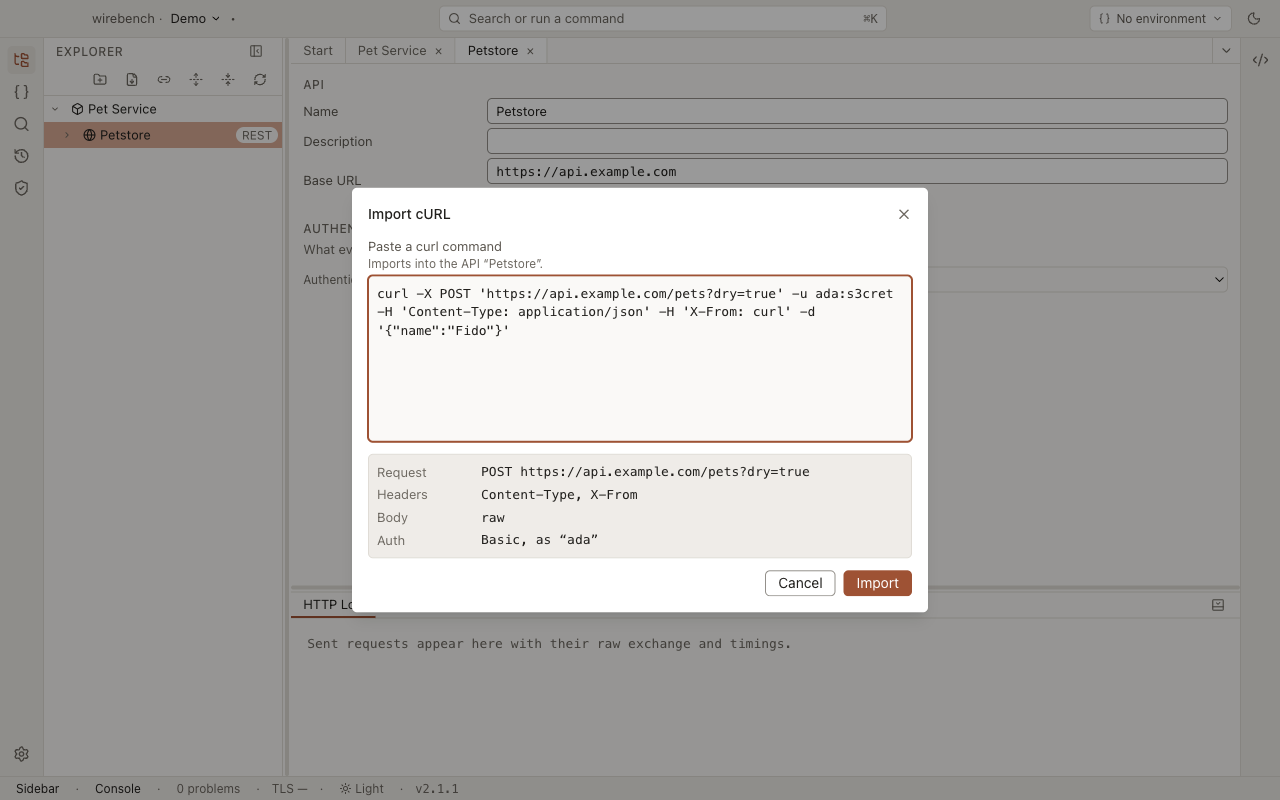
From a SOAP operation’s, an API’s, or a folder’s context menu, choose Import cURL…. The REST editor also offers it. The dialog names its target, for example “Imports into the API ‘Petstore’.”
-
Paste the
curlcommand. A live preview below shows what the import will fill in, depending on the target:- for an API or folder: the method and URL, header names, body kind and Basic user;
- for a SOAP operation: the endpoint, SOAPAction, header names, body length, and anything a SOAP request can’t keep.
Header values and passwords are never shown.
-
Choose Import. The new request opens in its own editor, and a toast names any flag the import ignored.
See From cURL commands for every flag.
The same command runs in reverse: Copy as cURL, from a request, and the Code panel’s preview both give you the request back as a command — with secrets masked unless you turn on show-secrets.
.proto files and gRPC servers
Section titled “.proto files and gRPC servers”-
Open Import… and pick Protocol Buffers (gRPC), or set the format and use the URL, File, or Paste tab for a
.protofile — or the Server tab to ask a running server. -
On the Server tab, give the address as
host:port, and set the Reflection version (automatic,v1, orv1alpha). Ask even if the certificate does not verify skips certificate checks. -
Optionally set Name, Target (
host:port, defaults to the address the server was discovered at), and whether the target speaks TLS (grpcs). -
Choose the target project and Import.
What arrives: the discovered services and methods, with the target address, or a note that it still needs one. The summary says whether the import came from files or from server reflection, and at what reflection version.
Legacy SOAP project
Section titled “Legacy SOAP project”Many SOAP testers keep their work in a legacy SOAP project file (one XML file from an older desktop SOAP workbench). Importing it reads that file and adds its interfaces, endpoints, saved requests, properties and environments to a Wirebench project. Definitions are read from the copy the file carries. Only a definition the file holds no copy of is fetched over HTTP(S), and the report notes it. See From a legacy SOAP project for every mapping.
-
Open Import… and pick Legacy SOAP project as the format, or run Import Legacy SOAP Project… from the command palette. Only the File tab works for this format — the project is read from the picked file itself, so a dropped or pasted copy is refused.
-
Browse to the file and choose the target project. For a new project, an optional name overrides the one the file carries.
-
Choose Import.
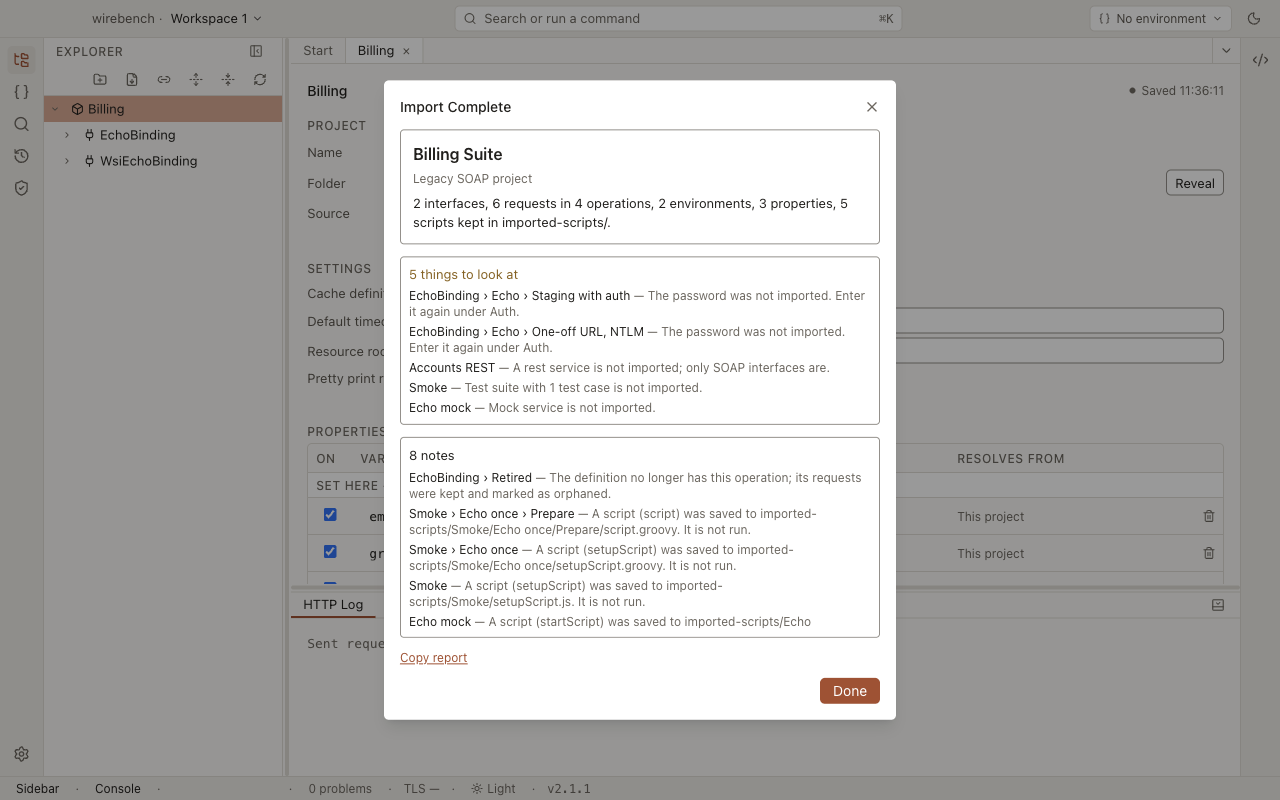
The summary counts interfaces, requests, operations, environments and properties, plus any scripts kept. Below the counts, two lists cover what needs attention:
- Things to look at: warnings about what did not come across, such as a password, test suites or mock services.
- Notes: informational items, such as a script saved to
imported-scripts/or an environment renamed to avoid a clash.
Copy report copies the full list as text.
Limits
Section titled “Limits”- Scope. Test suites, mock services, REST services, security configurations, database connections and auth profiles are not mapped. Each appears in the report with the reason.
- Passwords are never imported. Every saved request that had one is listed in the report, to be re-entered.
- Scripts are kept, never run. Every script in the file is written as-is to
imported-scripts/in the project folder and listed in the report. Nothing reads or executes that folder. - Compressed request envelopes that fail to decode are skipped and reported, rather than imported garbled.
- A name that already exists — for a project property or an environment — keeps its current value or gets a numbered name, and the report notes it.