REST
Wirebench’s REST client groups requests under an API, which holds a base URL and, optionally, authentication every request under it inherits.
Create an API and a request
Section titled “Create an API and a request”- Right-click a project in the explorer and choose New API…. The API tab opens; set its Base URL.
- Right-click the API and choose New request. Name it by double-clicking the breadcrumb.
- Set the method in the method picker and the path or URL next to it.
Path and query parameters
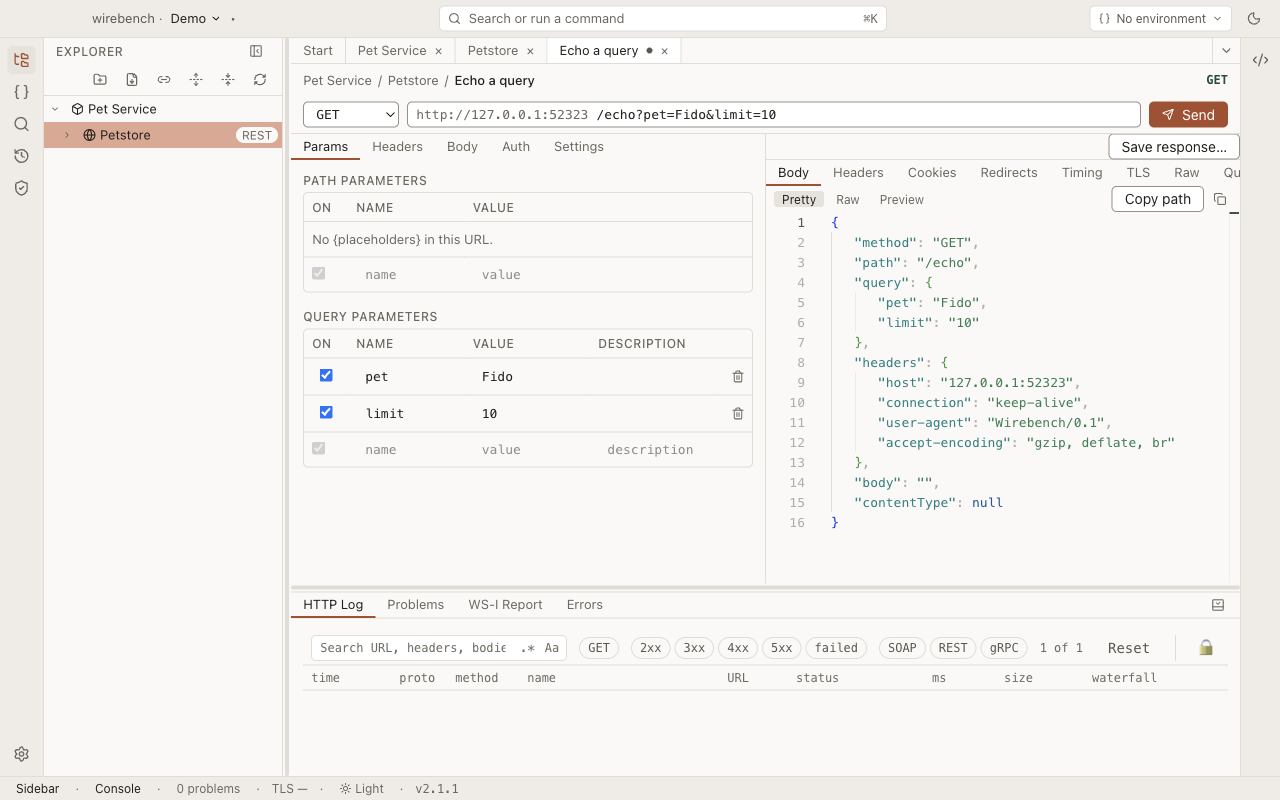
Section titled “Path and query parameters”A {name} segment in the URL becomes a row on the Params tab’s path parameters table — its
name is fixed by the placeholder, only its value is yours to set. The query parameters table below
it is the other view of the same URL: editing a row rewrites the URL’s query string, and editing
the query string re-reads the table. Each row has an enabled toggle, so you can disable a
parameter without deleting it.
Request body
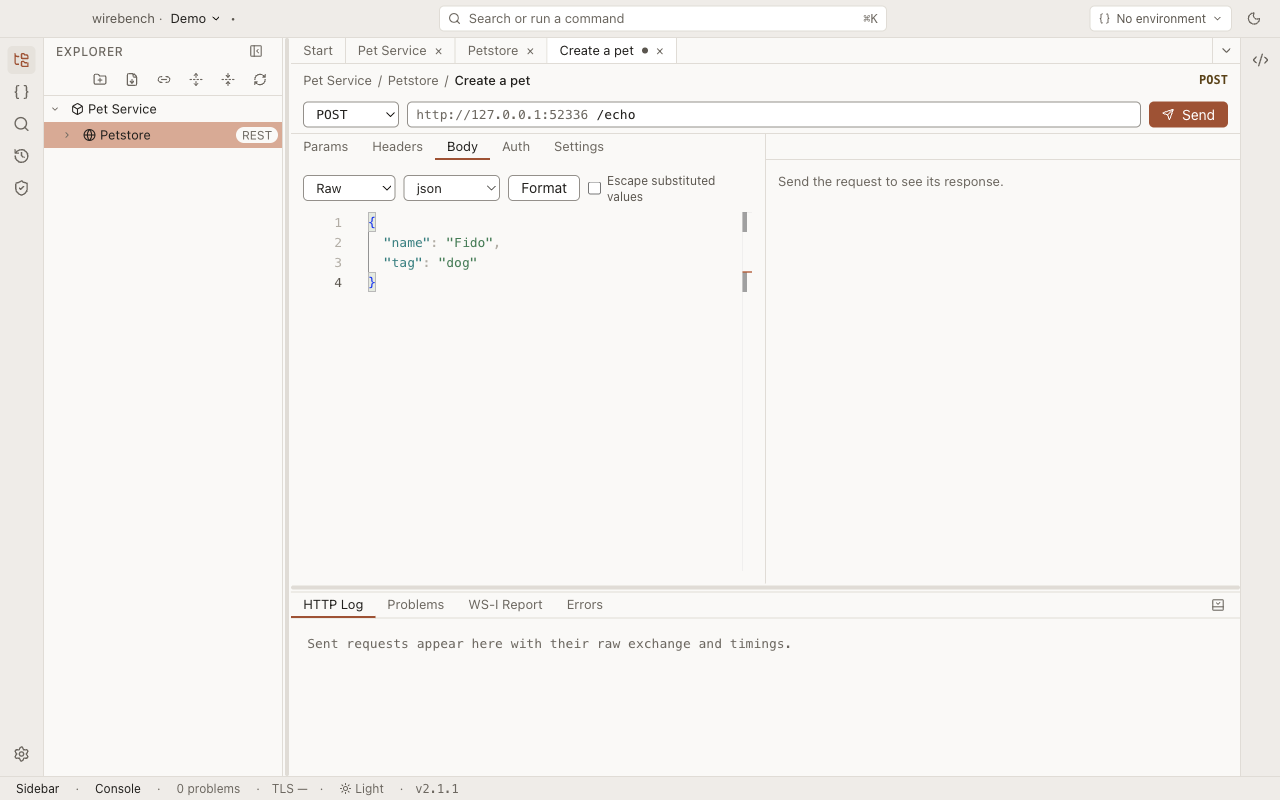
Section titled “Request body”The Body tab switches between five kinds, each keeping its own draft while you try another:
- None — no body.
- Raw — a text editor with a language picker (JSON, XML, text, HTML, JavaScript) and a formatter (⌘⇧F / Ctrl+Shift+F) that also reports a JSON or XML body that doesn’t parse instead of rewriting it.
- Form —
application/x-www-form-urlencodedkey/value pairs. - Multipart — mixed text fields and file parts, picked through the native file dialog.
- Binary — a single file as the whole body, with its own content type.
When a request was imported from an OpenAPI document and its operation declares a JSON request body,
a Text / Form switch appears next to the language picker while the body is Raw and set to JSON.
Form shows one field per property, labelled by its path (owner.first, tags[0]), with buttons to
add or remove optional properties and array items and a variant picker for a schema with alternatives
(oneOf). Every edit is written back to the same JSON text underneath, and switching to Text and back
without editing changes nothing. An edit in the form reformats the whole body with your editor’s tab
size: numbers are written in their plain form, and very large integers can lose precision. If the text doesn’t parse as JSON, Form shows a message and
a way back to Text instead of fields.
The form follows the method and URL in the URL bar, saved or not. Point the request at another operation and the fields change to that operation’s body, or the switch goes away if it has no JSON body.
Headers and auth
Section titled “Headers and auth”The Headers tab adds request headers as key/value rows. The Auth tab sets this request’s authentication, or leaves it on Inherit to use the API’s own — Basic, Bearer, API key (as a header or a query parameter), or OAuth 2 with client credentials or authorization code, whose client secret is stored through the same masked Set…/Save field as any other secret.
Send and read the response
Section titled “Send and read the response”Choose Send, or press ⌘⏎ / Ctrl+Enter. The response pane shows:
- Body — the formatted response, with headers, cookies, redirects, timing and the raw exchange each on their own tab.
- Query — run XPath 3.1 or JSONPath over a JSON body directly, without leaving the response.
Preview also renders an HTML body, as a static page: scripts do not run, forms do not submit,
links do not navigate, and nothing the page points at is fetched — inline styles and embedded
(data:) images still show. A page that relies on external stylesheets therefore looks unstyled.
HTML still opens in Pretty; switch to Preview when you want to see it rendered. Webhook captures
preview the same way.
Cookies a response sets go into the workspace’s cookie jar, hop by hop through redirects. A request
sends the jar’s matching cookies only when its Send cookies setting (Settings tab) is on; it is
off by default. A Cookie header you set by hand still goes out, and wins over a jar cookie of the
same name. The response’s Cookies tab says, for each Set-Cookie, whether it was stored,
deleted from the jar, or ignored and why (a domain the host does not match, a Secure cookie over
http, a cookie over 4 KB).
A request with an unresolved {path} placeholder or a property expansion that doesn’t resolve is
refused before anything reaches the server, and the response pane says why.
Examples
Section titled “Examples”A request can keep recorded responses beside it as examples: a HAR import with Save as examples keeps up to 5, one per status code. A request that has any shows an Examples (N) menu on the response pane’s status line, listing each by status and name, such as “404 Not Found — recorded 2026-10-04”.
Choosing one shows it in the response pane, read-only, under a banner that reads “Example — recorded, not a live response”, with Body and Headers tabs. Close goes back to the live response; Delete example removes it from the request. Examples are saved with the project.
Event streams
Section titled “Event streams”When a response’s Content-Type is text/event-stream, it renders event by event instead of
waiting for the connection to close — no separate request kind, no setting to turn on. Send
reads Stop for as long as the stream is open; an Events tab replaces Body, listing each
row’s name, id, data and arrival time as it arrives, with comment lines and retry: fields shown
alongside (a toggle hides them). Headers is there while the stream runs, too; the other tabs
appear once it ends. The Query tab runs XPath 3.1 or JSONPath over the events kept
so far, as one JSON document.
- Stop ends the stream as a normal response, shown as “stopped” — never as an error. A connection the server or the network drops mid-stream is recorded the same way, with its error and the events already received.
- There is no idle timeout once the stream is accepted: a server’s keep-alive comments every 15–60 seconds are expected. The request’s own timeout still governs until the response headers arrive.
- A long stream is kept at three sizes. While it is live, the pane holds the newest 5,000 rows. The finished response, the HTTP Log and HAR export keep the first 400 and the last 4,600 rows, within 32 MB of event data. History keeps the first 400 and the last 100, within 1 MB, and says how many rows it did not keep. The Events tab’s count is always the true total, including anything let go.
- Cookies a stream’s
Set-Cookieheaders set go into the jar as soon as the headers arrive, as for any other response. - History and the HTTP Log keep the stream as a multi-message exchange; its HAR export and cURL command work as they do for any other response — Copy as cURL adds
-Nwhen the request’s enabledAcceptheader asks fortext/event-stream. Re-sending a streamed row from the HTTP Log is refused; see HTTP Log. - Reconnecting with
Last-Event-ID, honouring a server’sretry:field, and event streams from the CLI are not built.
Response checks
Section titled “Response checks”A request imported from an OpenAPI document remembers the operation it came from, and every JSON
response it receives is checked against the schema that operation declares for that status — as long
as the request still calls that operation. A request you made yourself, or one whose method or path
you have changed since the import, is matched to an operation of its API’s imported definition by
method and path; where a concrete path such as /pets/mine and a templated one such as /pets/{id}
both fit, the concrete one wins. The URL may point at another host than the definition’s servers
(a staging copy, a local mock): its path still matches, with a server’s own path prefix such as
/v1 taken off first.
The media type is taken from the response’s Content-Type; a JSON body that arrives without one is
checked against the operation’s application/json response.
The verdict is a chip on the response status line:
- Contract ✓ — the body matches.
- Contract: N problems — it does not. Each problem is a marker on the Pretty body view at the property it is about, and a row in the Problems panel; choosing the row opens the request and shows that place in the body. At most 50 problems are listed.
- Unexpected status — the operation declares no response for this status. An exact status is
used first, then a range such as
4XX, thendefault. - No schema — the matching response declares no schema to compare with.
- Skipped — the body is larger than 1 MiB, so it is not parsed for the check.
- Not checked — the check gave up: it ran out of time (the whole wait, looking up the definition included, is held to 1000 ms), the body was too large or too deeply nested to finish (200,000 schema steps, nesting 256 deep), the send was cancelled, too many responses were already waiting to be checked, or the checker failed. It is neither a pass nor a failure. When real problems were found before such a stop, the chip lists them and its details say the check was partial.
Hover or focus the chip for the operation, response key and media type it used, and for anything the check could not evaluate, such as a schema keyword it does not support. The check runs in a worker thread, so a slow schema never holds up the app. History keeps each send’s chip. Problems name where they are (a JSON Pointer, which contains the body’s property names) and what the schema wanted; they do not quote the body’s values.
No chip appears when there is nothing to check against — the request’s API has no imported definition, or no operation matches — or when the response is an event stream or not JSON (XML, HTML, text or binary).
Update Definition
Section titled “Update Definition”When an API was made by importing an OpenAPI document and that document changes, re-read it instead of importing again: importing always makes a second API, updating keeps the one you have been working in.
Open it from the API’s tab (Update definition…, in the Definition group), from the API row’s context menu (Update Definition…), or from the command palette (REST: Update Definition…). The entry is offered only for an API that recorded where its definition came from.
The dialog reads the source and previews, before anything changes. A document imported with Authentication is read again with the same credentials, from the keychain, without asking.
- Added operations and Removed operations, each as
POST /pets. - Changed operations, each with its reasons —
parameters,request-body,responses,securityorservers. - An API-wide line when the document’s servers, security or version changed.
Choose Apply to take it, or Cancel to leave the API as it is. After applying, a toast gives the counts: requests added, rewritten, orphaned and restored.
What follows the new document, and what does not
Section titled “What follows the new document, and what does not”An operation is identified by its method and path as the document writes them, so a path renamed in the document reads as one operation removed and one added rather than a rename.
A field is rewritten only while it still equals what the old document generated. That covers the
request’s URL, its path, query and header parameter rows (row by row, by location and name), its
body content type and generated sample, and its auth; and, API-wide, the base URL taken from
servers, the API’s auth, and the definition’s version. Anything you edited is yours and is kept —
an edited parameter value, a body you changed, an auth you filled in, and rows you added yourself. A
parameter row the new document no longer declares is removed if it was still as generated, and kept
if you had edited it. A request with no link to an operation — one you made by hand — is left
entirely alone.
One thing an edited row still follows: if the new document makes a query parameter required, its row is switched on, so the request is still sendable as the document now asks. Your value is kept — only the tick box changes. Rows you added yourself are never switched on this way.
Nothing is deleted. A request whose operation is gone from the document is kept and badged orphaned in the explorer; if that operation comes back in a later update, the badge is cleared.
Another source, and a source that moved on
Section titled “Another source, and a source that moved on”Choose another file or URL… updates from somewhere else — a local copy, a next-version URL — rather than from the recorded source. An API imported from pasted text has no source to read again, so the dialog asks for a file or URL straight away.
Under the URL is the same Authentication section the Import dialog has. For a URL on the recorded source’s origin it starts with the stored credentials; for any other it starts at None, so a stored credential is never sent to a new host unless you choose it. Applying from a URL records that URL and the section’s credentials (None clears them); applying from a file clears them. When the recorded source answers that it needs authentication, or refuses the stored credentials, the dialog opens this chooser on that URL with the message, so you can enter or fix them and preview again.
Apply carries a fingerprint of every document the preview read. If the source changed again in between, nothing is applied: the dialog says so and offers Preview again.
Afterwards the cached definition is rewritten, so response checks use the new schemas, and the project is saved. If that save fails, the API is left exactly as it was.
Re-send from History
Section titled “Re-send from History”Every send is recorded in History with its method, URL, headers and body. Choose ↻ on the entry to send it again through this request, with the request’s current auth and settings; redacted values are filled from the request. An entry that ended on another host (a redirect, or another environment) is re-sent from the request instead. Comparing two entries diffs both the response and the request — see Re-send a REST request.
Cookies
Section titled “Cookies”View → Show Cookies, Cookies… in the Environments view, or Manage cookies on a response’s Cookies tab opens the workspace’s cookie jar in a tab. Cookies are grouped by domain; values stay masked until you choose Show values. You can add a cookie, edit one, delete one or a whole domain, or Clear all after confirming.
- Each workspace has its own jar. Opening another workspace switches jars.
- Cookies with an expiry are kept across restarts, encrypted with the system keychain. Session
cookies (no
ExpiresorMax-Age) last until you quit. When the system has no secure storage, nothing is written and the tab says so. - The jar never reaches the project folder, a shared workspace’s repository or a Wirebench server.
- A domain may hold 50 cookies and the jar 3,000; past that, the cookie expiring soonest is dropped first, session cookies last.
wirebench runkeeps a jar for the run only; see Run in CI.
Limits
Section titled “Limits”- The jar has no public-suffix list, so a server can set a cookie for a whole registry domain such
as
co.uk. It is sent only from requests with Send cookies on. - The Query tab evaluates XPath 3.1 or JSONPath against JSON bodies; it does not query XML or binary responses.
Related
Section titled “Related”- Importers: bring in an OpenAPI document or a cURL command as requests.
- Environments
- HTTP Log