SOAP and WSDL
Wirebench imports a WSDL into an operations tree, generates a sample envelope for every operation, and sends it over HTTP or HTTPS. WS-Security, MTOM attachments and WS-I Basic Profile checks build on the same request.
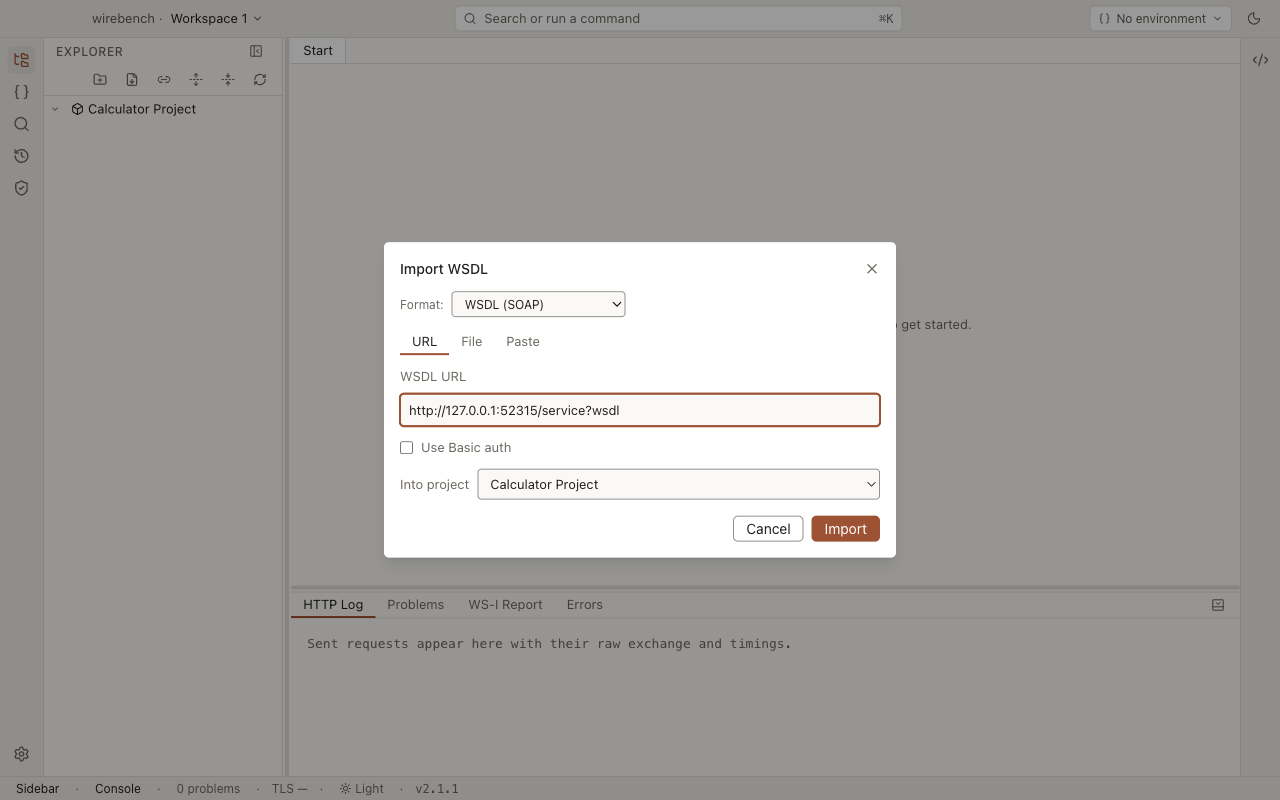
Import a WSDL
Section titled “Import a WSDL”- Right-click a project in the explorer and choose Import….
- On the File or URL tab, point to the WSDL — a local path or an HTTP/HTTPS URL.
- Name the interface and confirm. Wirebench fetches everything the WSDL imports or includes and stores it beside the project.
The explorer fills with a folder per interface, a request named Request 1 under each operation,
generated from the operation’s schema.
Send a request
Section titled “Send a request”Open a request and it opens in the request editor with a generated SOAP envelope.
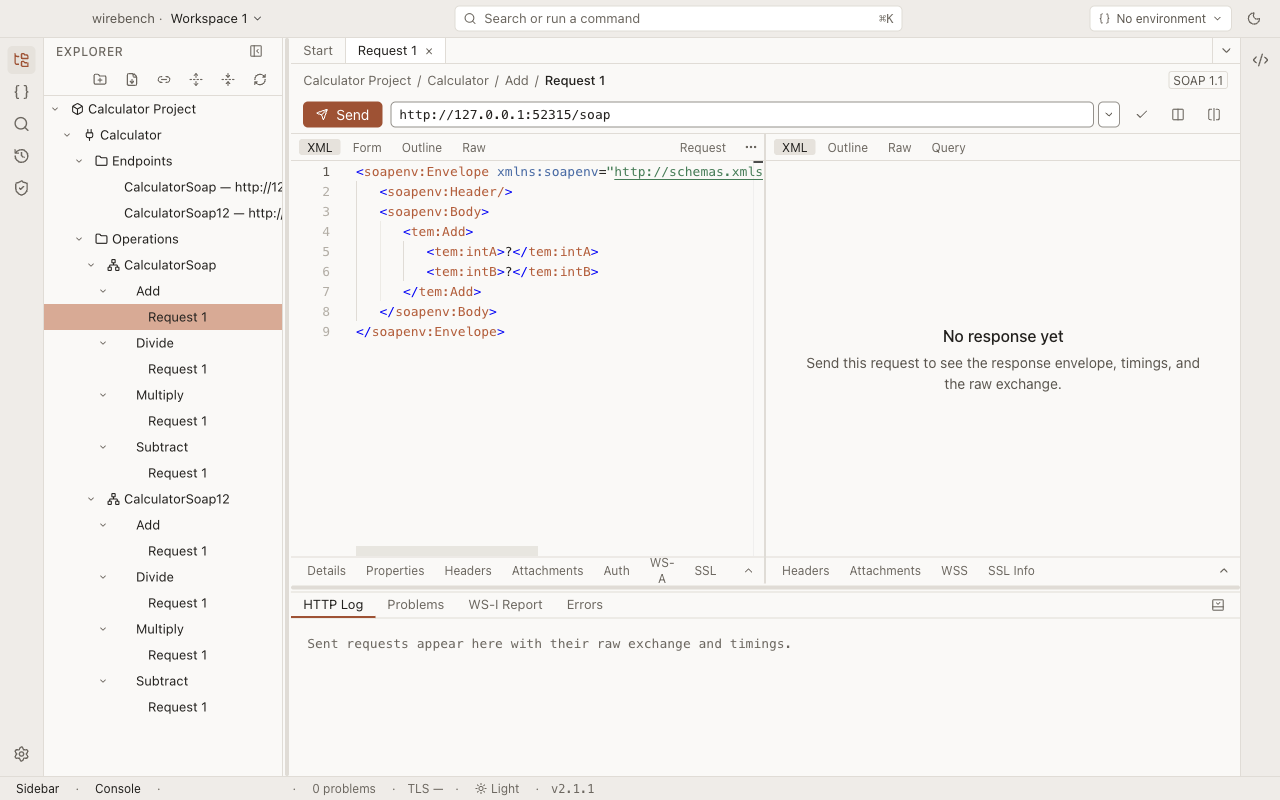
Fill in the values and choose Send, or press ⌘⏎ / Ctrl+Enter. The response opens beside the request with its status, headers, timing and raw bytes on their own tabs, and the exchange is recorded in the HTTP Log and in History.
A SOAP request does not follow redirects unless its Follow redirects property is on, because a
redirected POST usually arrives as a bodyless GET. The one exception is a server that moves the
request to TLS: a 301, 302, 307 or 308 from http://host/path to https://host/path (same host,
path and query, default ports) is followed every time, and the request is resent there with its
method, envelope and credentials. The response then carries an https-upgrade Problem naming both
URLs: change the endpoint to https:// to save the extra round trip. REST requests follow the same
rule, and the HTTP Log’s redirect list marks the hop “upgraded to HTTPS”.
Right-click the request pane and choose Check WS-I compliance to run the WS-I Basic Profile assertions against the exchange you just sent — see the report’s summary, filter to failures, and export it as HTML. Check WSDL WS-I compliance on an interface row runs the same checks against the WSDL’s structure, without a send.
Configure WS-Security
Section titled “Configure WS-Security”WS-Security configurations live in their own view. Open WS-Security from the activity bar (the shield icon). It has three sections: Keystores, Outgoing and Incoming.
- Choose + next to Outgoing to create an outgoing configuration, then expand it.
- Pick from Add entry… to add a Timestamp, Username Token, Signature or Encryption entry. Entries run in the order listed; the arrows move them.
- A Username Token takes a username and a Password type (Digest, Text or None). The password itself goes in through the masked Set… field, never typed in the clear.
- A Signature or Encryption entry needs a keystore. Choose + next to Keystores, pick a
PKCS#12 file (
.p12/.pfx) or a PEM bundle (.pem/.crt/.cer/.key), and set its password the same masked way. Java keystores (.jks) aren’t read; convert one to PKCS#12 first withkeytool -importkeystore -srckeystore in.jks -destkeystore out.p12 -deststoretype PKCS12.
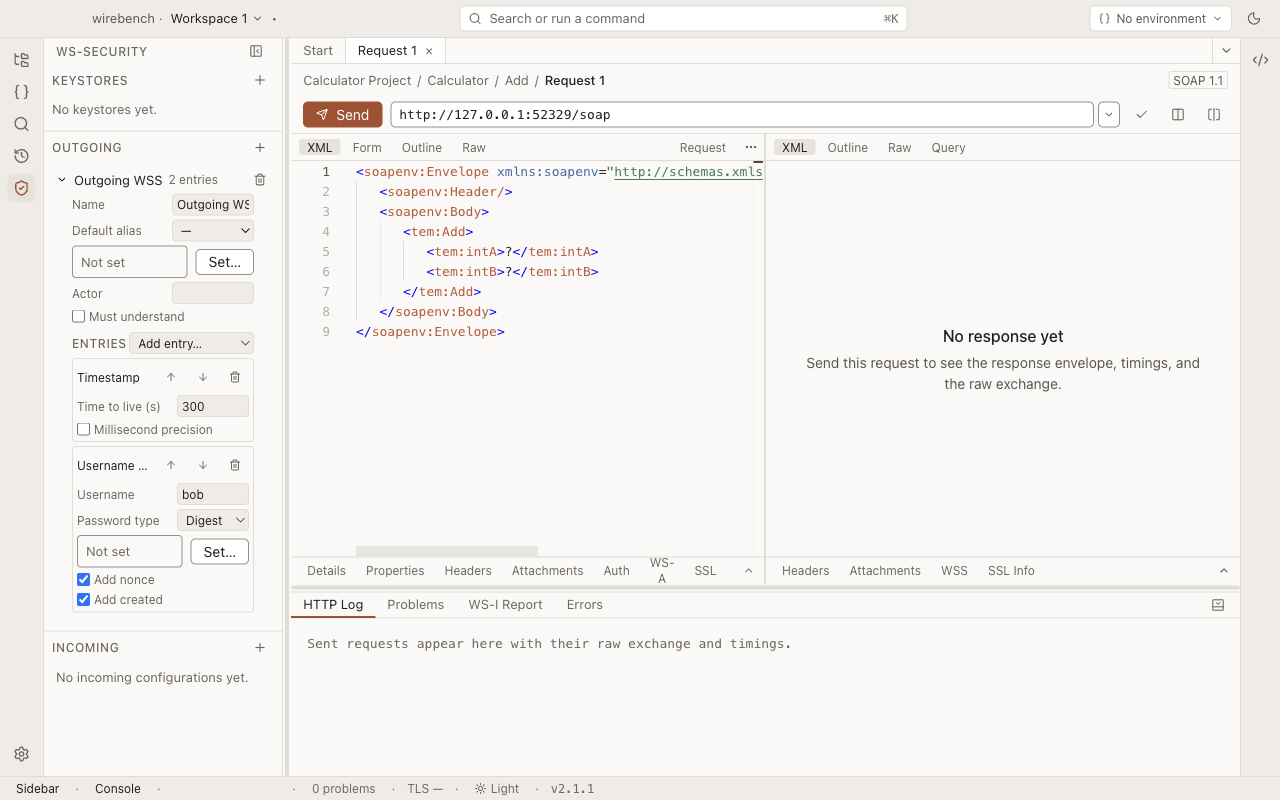
Select the configuration on the request’s Auth inspector tab (Outgoing WSS) before
sending. The raw request view masks the password even though the envelope itself has the
wsse:Security header; the project file on disk stores a passwordRef, never the password.
An incoming configuration validates a response: select it as Incoming WSS on the same Auth tab, and the response’s WSS inspector tab reports whether the signature or encryption checked out.
SAML tokens
Section titled “SAML tokens”Choose SAML Token in Add entry… to place a SAML assertion in the wsse:Security header.
The assertion lands in entry order, so add it before a Signature that should cover it. Pick Form
to have Wirebench build the assertion, or XML to supply one you already have.
Form fields:
- SAML version: 2.0 or 1.1.
- Issuer and Subject, with an optional Subject format URI.
- Confirmation: Bearer, Holder of key or Sender vouches. Holder of key adds a Proof keystore (and alias) whose certificate the assertion names as the key holder.
- Audience: an optional audience restriction.
- Lifetime (s): how long the assertion is valid, from now.
- Authentication context: an optional context class URI.
- Attributes: a name, an optional format URI and comma-separated values per row.
- Sign as issuer: signs the assertion with an Issuer keystore, alias and Issuer key password (set through the masked field), using the Signature algorithm you pick: RSA-SHA256 (the default) or RSA-SHA1. Leave it off for an unsigned assertion.
A cleared optional field is left out of the assertion rather than sent empty.
XML takes the assertion inline or from a project file. Expand properties is off by default:
expanding ${...} inside a signed assertion changes the bytes the signature covers and breaks it. A
file must sit inside the project folder. With Expand properties on, a reference nothing resolves
refuses the send rather than going out as written.
Wirebench places a supplied assertion into the header unchanged. It never gives the assertion a
wsu:Id and never edits its attributes or children, so a signature it carries stays valid. In the
HTTP Log, the assertion’s signature value is masked unless secrets are shown; the rest of the token
stays readable.
Holder-of-key and signing over a token
Section titled “Holder-of-key and signing over a token”A Signature entry can refer to a SAML token and cover it. Both options sit on the Signature entry, and the token has to come earlier in the list. When several tokens come earlier, the nearest one before the Signature entry is the one used.
- Key identifier: SAML token reference. The signature’s
ds:KeyInfopoints at the SAML assertion with awsse:SecurityTokenReferenceinstead of naming a certificate. Use it for holder-of-key: the signature must be made with the proof key the assertion names, so pick the keystore and alias of that key. When Wirebench knows the proof certificate (a token built from the form with a proof keystore), it refuses a mismatched key itself, withwss-proof-key-mismatch, instead of sending a signature the receiver would reject. - Cover the SAML token (STR-Transform). Adds a part that signs the assertion through a
wsse:SecurityTokenReferenceand the STR-Transform, without altering it: the assertion keeps nowsu:Idand its own issuer signature stays valid. The part does not appear in the parts table; the checkbox adds and removes it.
Sender vouches is a signature by your own key over the message body and the token: keep the usual certificate key identifier and tick Cover the SAML token (STR-Transform). A new Signature entry’s default parts already cover the Body and the Timestamp, so the signature then covers the Body, the Timestamp and the token.
Attach files
Section titled “Attach files”Open the request pane’s Attachments tab to add a file. Wirebench copies it into the project’s own cache, named by its content digest, and shows it in the grid with its size.
Give the attachment the Content-ID your envelope references with cid: in the grid’s inline
editor, then turn on Enable MTOM in Request properties (the inspector points you there
when MTOM is off). Wirebench sends the file as a separate MIME part and rewrites the cid:
reference as an xop:Include; anything the response sends back appears on the response’s
Attachments tab, where Save attachment as… writes it to disk.
Update Definition
Section titled “Update Definition”When the upstream WSDL changes, right-click the interface and choose Update Definition…, point it at the new WSDL, and choose Preview changes. The preview lists what is new, removed and changed; choose Update to apply it:
- New operations get a generated request, folded shut like anything an import adds.
- Removed operations’ requests are kept as orphaned rows, not deleted.
- An edited request whose operation still exists keeps your edit — save your changes before running the update, since the merge reads what’s on disk.
Limits
Section titled “Limits”- WSDL 1.1 with SOAP 1.1 and 1.2 bindings.
- WS-I Basic Profile checks the fixed set of assertions in the report; there is no way to add custom ones.