Ten-minute walkthrough
This walkthrough sends one SOAP request and one REST request against public test services. You need Wirebench installed and an internet connection.
Part 1: a SOAP request
Section titled “Part 1: a SOAP request”-
Create a workspace. On the workspace picker, type a name such as
Tutorialand choose Create workspace. -
Add a project. In the empty explorer, choose New project, name it
Calculatorand confirm. You can also run New Project… from anywhere with ⌘⇧N (macOS) or Ctrl+Shift+N (Windows and Linux). -
Import the WSDL. Press ⌘I or Ctrl+I to open Import. On the URL tab, paste this public calculator service:
http://www.dneonline.com/calculator.asmx?WSDLLeave the format on Auto-detect, choose
Calculatoras the target project and import. Anything the WSDL imports or includes is fetched with it and stored beside the project.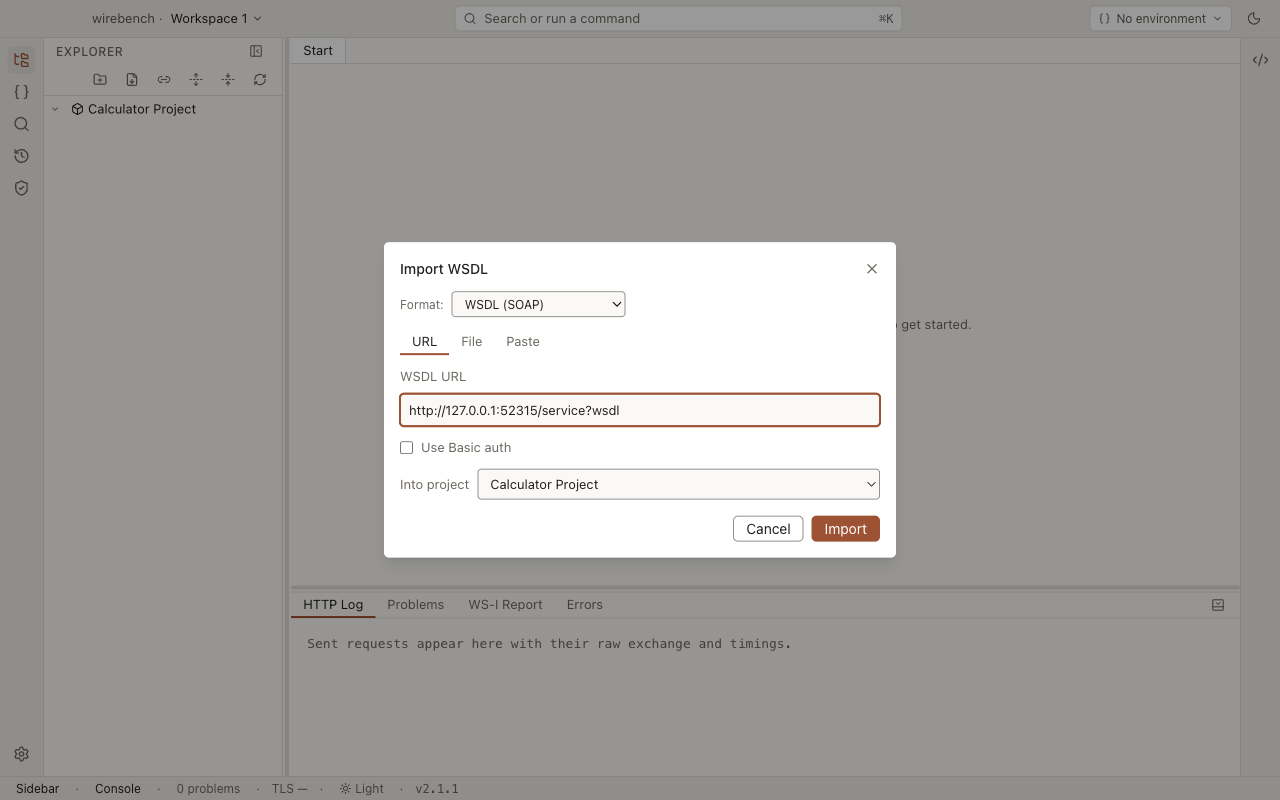
-
Open a request. The explorer now lists the service’s bindings and operations. Each operation has a
Request 1whose envelope was generated from the schema. Expand Operations → CalculatorSoap → Add and open Request 1.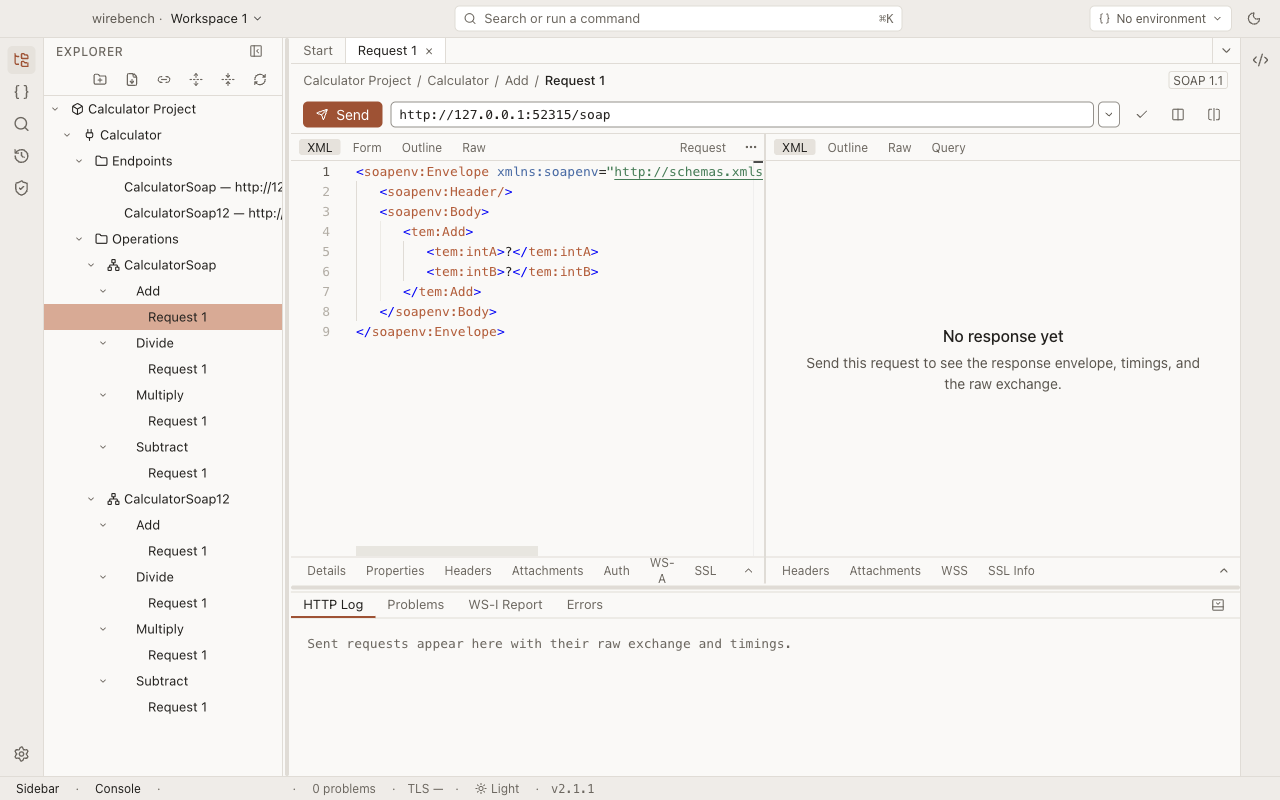
-
Fill in the values. Replace the two
?placeholders with numbers, for example<tem:intA>2</tem:intA>and<tem:intB>3</tem:intB>. If you would rather not edit XML, switch to the Form tab and type into the fields. -
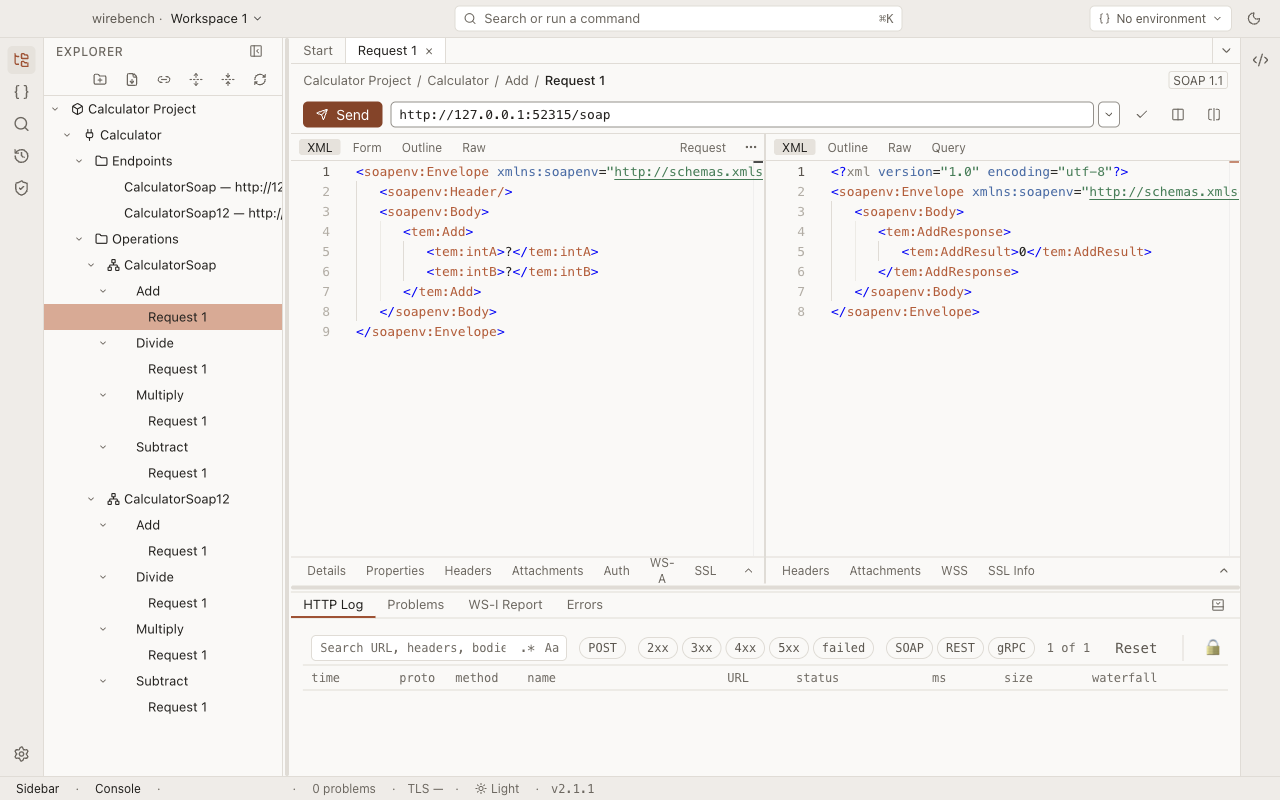
Send. Choose Send or press ⌘⏎ / Ctrl+Enter. The response opens beside the request, with its status, duration and size. The HTTP Log at the bottom records the exchange, and History keeps the run so you can send it again later.
Part 2: a REST request
Section titled “Part 2: a REST request”-
Create an API. Right-click the
Calculatorproject in the explorer and choose New API…. The new API opens in a tab. Set its Base URL to:https://httpbin.org -
Add a request. Right-click the API in the explorer and choose New request.
-
Set the method and path. Leave the method on
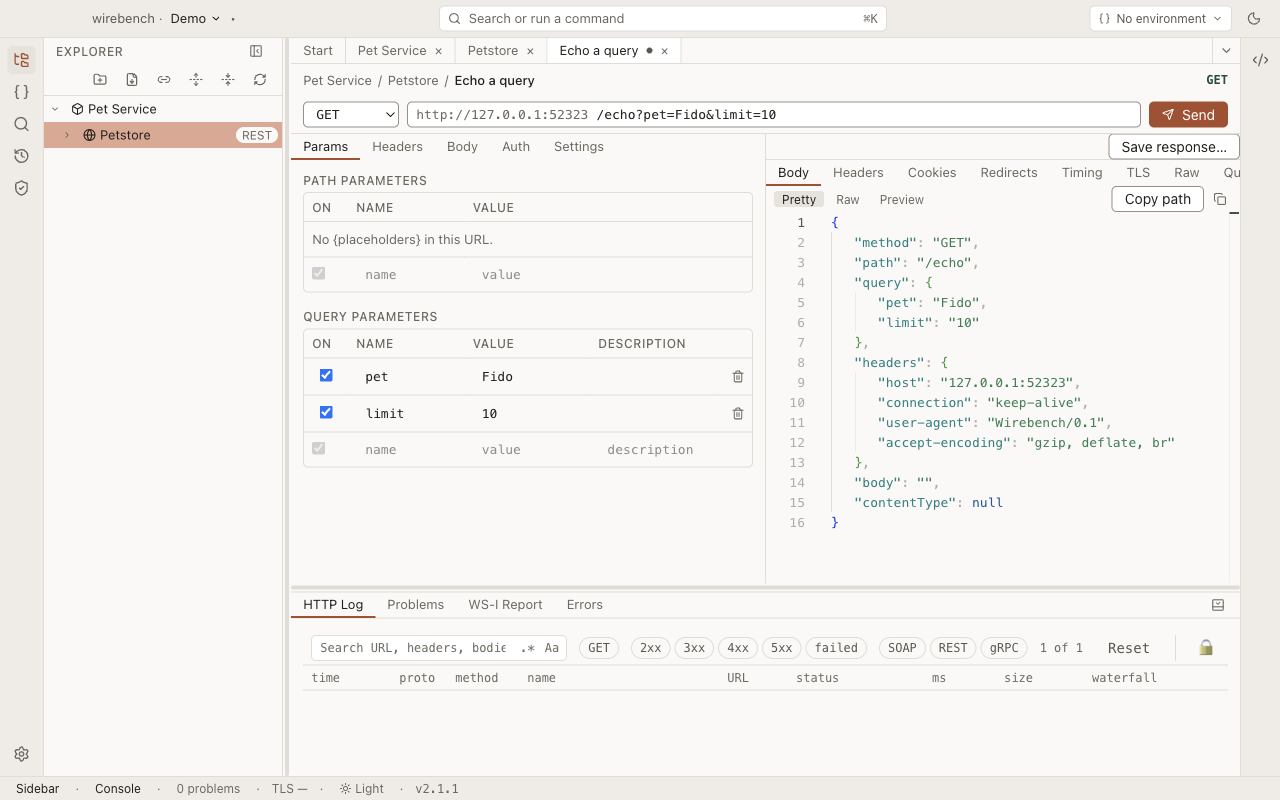
GETand enter the path/get?pet=Fido&limit=10next to it. The query parameters also appear on the Params tab, where you can edit them one by one. -
Send. Press ⌘⏎ / Ctrl+Enter. httpbin echoes the request back as JSON, so the response shows the query parameters you sent.
Where next
Section titled “Where next”- SOAP and WSDL: endpoints, WS-Security, attachments and XPath queries over responses.
- REST: parameters, bodies, auth and OpenAPI import.
- Environments: switch between test and production endpoints without editing requests.
- Shared workspaces: work on the same workspace with your team.