Shared workspaces
A workspace can be shared with a team. Members join by URL, or by pointing at an existing folder, and every save becomes a commit so everyone converges on the same projects and environments.
A shared workspace’s tree — workspace.yaml, environments/, and each project’s files — becomes
either:
- a git repository, synced by Wirebench’s own Sync control over the system
git, or - a synced folder, replicated by whatever tool you already point at that folder (Dropbox, OneDrive, Syncthing, a network share) — Wirebench just reads and writes the files there, or
- a team workspace on Wirebench Server, synced over HTTP with no git needed on your machine — see Share with Wirebench Server.
Everything that must never leave your machine — which environment is active, unsaved edits, secret values, history, preferences — stays out of the tree. See Secrets below.
Share a workspace
Section titled “Share a workspace”- From Manage workspaces… (or the workspace switcher), choose Share this workspace… on a local workspace.
- Choose Git repository (the default) or Synced folder.
- For a git repository, enter a remote URL (optional — you can add one later from the Sync
panel) and a branch, which defaults to
main. - For a synced folder, click Choose folder… and pick an empty folder.
Every save becomes a commit. Members join by URL, or by pointing at the same synced folder.
Join a shared workspace
Section titled “Join a shared workspace”Join shared workspace… is on the workspace picker and always available, since it’s how a workspace first arrives on a machine.
- Paste the git URL (
git@host:team/workspace.git,https://…, orssh://…) and, optionally, a branch. Wirebench clones it and opens it. - Use existing clone or synced folder… picks a folder that is already a git checkout or an
existing synced folder containing a
workspace.yaml.
Joining a workspace already on this machine is refused; the dialog offers Open it instead.
Sync: pull, push, commit
Section titled “Sync: pull, push, commit”Once a workspace is shared, the status bar shows a Sync badge whose label follows the sync state — Up to date, N to push, N to pull, Diverged, Conflicts, Syncing…, Offline, Error, No git (a git share where git could not be found), or Synced folder (no Sync control at all). Click it to open the Sync panel:
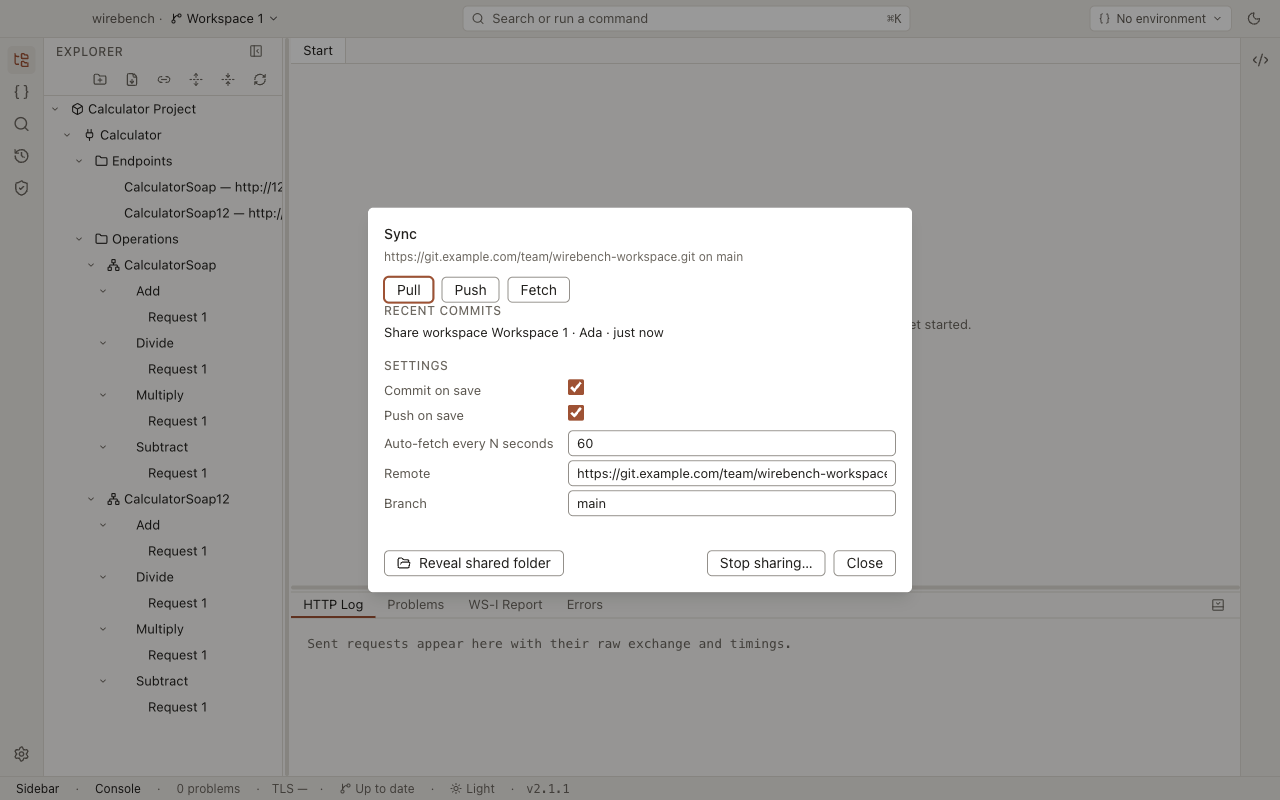
- Pull, Push and Fetch buttons, and a commit-message field for when Commit on save is off — leave it empty and Wirebench writes a generated one.
- Conflicts, when there are any, each with a Resolve… shortcut into the conflict resolver.
- Recent commits — the last 20, each with its subject, author and a relative time.
- Settings — Commit on save, Push on save, Auto-fetch every N seconds, Remote and Branch.
- Reveal shared folder and Stop sharing….
Commit on save (on by default) commits every successful save with a generated message. With it off, saves stay uncommitted until you use Commit with your own message.
Push on save (on by default) pushes every commit right away. A push rejected as non-fast-forward triggers a fetch, merge and retry automatically.
Fetch runs on open, on demand, and on the auto-fetch interval; it never changes files, only the ahead/behind counts. Pull is fetch plus merge — it’s refused if you have uncommitted changes and Commit on save is off.
Commits held for possible secrets
Section titled “Commits held for possible secrets”A Commit you make from the Sync panel first checks every open project for credentials in plain text, and lists anything it finds in the same review a manual save uses — see Secret tokens and scanning.
An automatic commit — Commit on save, or the catch-up commit when the workspace opens — can’t ask, so it waits instead. While an open project has a possible secret you haven’t moved or kept, the commit is held and the Sync panel shows Commit held — N possible secrets with a Review button. Review opens the list:
- Once every finding is moved to the secret store or kept, the hold ends and the held commit runs, pushing too when Push on save is on. A moved value is saved to the file before it’s committed.
- Commit anyway commits with the findings still there, in place of the held commit.
- Cancel leaves the commit held.
Save anyway on a manual save doesn’t keep what it found, so with Commit on save on, the commit that follows it is held.
A Pull commits your changes first, so while they carry a possible secret it’s refused with Review the possible secrets in the Sync panel before pulling — as is the pull a rejected push makes. Sharing a workspace commits and pushes every file, so Share runs the same review first.
Conflicts
Section titled “Conflicts”When a merge leaves conflicted files, the sync banner offers Resolve…, which opens the conflict resolver. It lists each conflicted entity by name with three choices:
- Keep mine
- Keep theirs
- Open file — edit it by hand in your file manager and resolve it outside the app.
Cancel aborts the whole merge, with a confirmation, since it discards every resolution made so far.
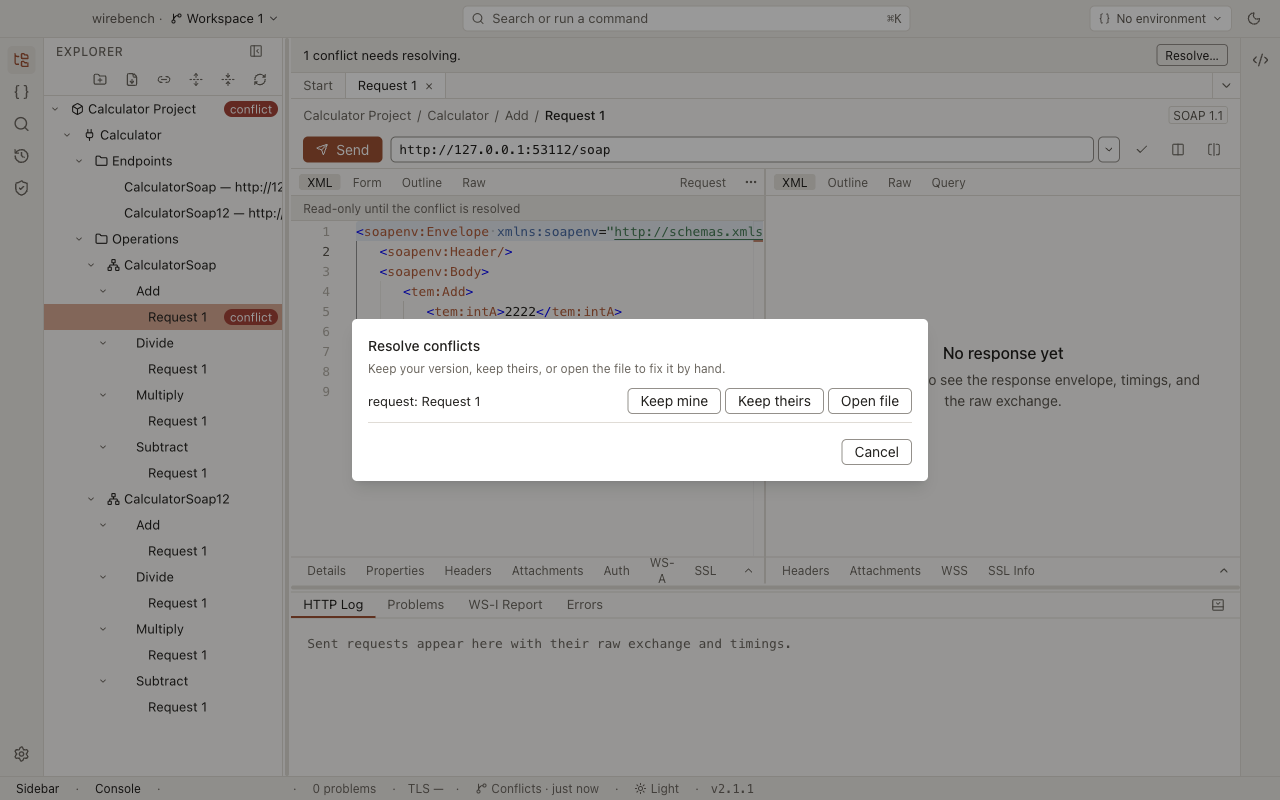
While a conflict is open, conflicted requests are read-only in the editor. Once every conflicted file is resolved, Wirebench commits the merge and reloads.
Identity
Section titled “Identity”The first time a shared workspace needs to commit and neither the repository nor your global git config sets both a name and an email, a dialog asks for them once and writes them into the repository’s own local git config — not a Wirebench-wide identity. There is no way to dismiss this dialog without answering it.
Secrets
Section titled “Secrets”Secret refs travel with the workspace like everything else; the values behind them never do — they stay in each member’s OS keychain. Open a request whose secret ref has no value on this machine and the field shows Not on this machine with an Enter… button; typing a value there stores it locally under the same ref, so the shared files are untouched and your teammates’ files never change.
A ${secret:name} token works the same way: the name travels in the file, and each member sets
their own value for it on their own machine, with Set Secret Token Value… from the command
palette. Until you do, a send that uses it fails with The secret “name” is not on this machine, and
the toast’s Set value… button opens that same dialog on the missing token. See
Secret tokens and scanning.
Team secrets
Section titled “Team secrets”Sharing a workspace to git or a folder turns team secrets on: the values behind secret references are shared too, encrypted for each approved machine. A server workspace turns them on when an admin shares it, or from Team secrets → Turn on team secrets in the Sync panel. Team secrets need the system keychain; on a machine without one, values stay local.
- Joining. A machine that joins asks for access on its first sync. Until an admin approves it, sending a request that needs a team value says the machine is waiting for approval.
- Declined or removed. A machine whose request an admin declined does not ask again by itself: the Sync panel says so and offers Ask for access again, which makes a new key and asks. A removed machine gets the same button. If the request cannot go out (for example, too many requests in a short time), the panel says why and nothing changes. On a server workspace, a request declined within moments of being sent can be sent once more by itself; decline it again and it stays declined.
- Approving. The sync badge counts machines waiting. In the Sync panel, each request shows its person, machine and fingerprint. Check the fingerprint with the person another way — a call or in person — before choosing Approve. The joining machine sees its own fingerprint in the same section.
- Changing a value. Saving a value on an approved machine commits it encrypted as Update secret …. Every other approved machine uses it after its next sync, with nothing to type.
- Only the workspace’s secrets. Only values the workspace’s projects or environments use are shared. Secrets of the app itself, such as the proxy password in Preferences, stay on your machine.
- At the same time. When two machines change one value before syncing, the newer one wins. The other machine keeps its own value and offers Restore my value or Keep theirs.
- Removing. Removing a machine re-encrypts every value without it. A removed machine may have kept what it could read, so every such value is marked Rotate: change it where it is issued. Git history keeps old ciphertexts, so this marks the value for rotation rather than claiming it is safe.
- Admins. Whoever turns team secrets on is the first admin; add another so the team keeps access if that machine is lost. On a server workspace, the workspace’s admins are the team-secrets admins.
- Updating. Everyone should update Wirebench before an admin turns team secrets on: an older version syncs
the
team-secrets/folder but cannot use it. - Stopping sharing leaves the encrypted values with the shared copy; the local workspace keeps only this machine’s own values. Sharing it again later turns team secrets on afresh.
- Moving a server workspace to git or a folder keeps the server’s rules for who may change access, with no server to enforce them: any approved member can then approve and remove machines. Only move one among people you would all trust as admins.
- Two machines turning team secrets on at once for the same share end up with two separate logs that ignore each other. Agree who turns it on.
- Marks on the field. Only on this machine and Rotate appear on a secret reference’s field; for a
${secret:name}token, look in the Team secrets section.
Without git
Section titled “Without git”A synced folder has no Sync control of its own: whatever tool watches that folder is in charge of getting files to other members, and Wirebench just reloads what changes on disk. Two people saving the same file at the same time race on whatever your sync client does about it — usually last write wins, with no merge. Prefer a git share for anything beyond one person working across their own machines.
With git absent entirely, a git share still opens and works as a plain folder — the badge shows No git and the Sync panel explains what to install.
Stop sharing
Section titled “Stop sharing”From the Sync panel, Stop sharing… moves the tree back to the workspace’s own folder and turns the workspace local again. Nothing is deleted, and the git repository (if any) is left in place for you to delete by hand.
Sign in to a server
Section titled “Sign in to a server”A team that runs Wirebench Server signs in to it from the app. Run Account: Sign in to a server… from the command palette, use the status bar’s Sign in, or Add server… under Settings → Accounts, then:
- Enter the server’s address. Wirebench checks that it is a Wirebench Server of a version this app
understands and remembers the address as its origin (
https://wirebench.example.com). - Sign in the way the server allows: with an email and password, or with Continue with
<provider>when the server is connected to the team’s identity provider — that opens your browser and comes back to the app when the provider is done. Have an invitation code? takes the code from an invitation link (an admin sends it) and lets you choose your display name and password.
Once signed in, the status bar shows your email. The session is a device token the server issued to
this installation: it lives in the OS keychain (secrets.json names it under wirebench-server:<url>,
the value is never in a file) and expires after 30 days without use, or 180 days at most. The
password is sent once to the server and kept nowhere.
Sign out (status bar → Sign out of <server>, or Settings → Accounts) revokes the token on the
server and forgets it here. If the server stops accepting the token — an admin removed the device, it
expired — the app says so once, with Sign in again, and does nothing on its own.
Admins manage accounts from the server: wirebench-server admin invite <email> prints an invitation
link, and the API under /api/v1/users and /api/v1/invitations does the rest (see the server’s
README). Nothing in the app needs a server; without one, no account UI is shown and no network call
is made.
Teams and roles
Section titled “Teams and roles”On Wirebench Server, every shared workspace belongs to a team, and what you can do in it depends on your role. Open Account: Manage teams… from the palette, the status bar’s account menu, or Manage teams… beside a signed-in server under Settings → Accounts.
-
Teams. A server admin creates a team and adds its first admin. Team admins add people who already have an account, or invite someone by email. The invitation link is shown once, with Copy, and whoever accepts it joins the team with the role it names. Anyone can leave a team; a team always keeps at least one admin.
-
Workspace roles. A workspace has three roles: viewer can pull, editor can also push, and admin can also change its settings and access. Your role comes from, in order:
- being a server admin or an admin of the workspace’s team (always admin);
- a grant a workspace admin gave you;
- the workspace’s default role, which starts as viewer and can be none.
Whoever creates a workspace gets an admin grant on it.
-
Access. On the Workspaces tab, Access… lists everyone on the team, the role they end up with, and where it comes from. A workspace admin sets a grant per person, or Use default to remove it. A team admin’s role cannot be lowered by a grant.
If you have no role in a workspace, the server does not show it to you at all. Members who are not admins see the same dialog read-only, so everyone can check their own access.
Share with Wirebench Server
Section titled “Share with Wirebench Server”Once you are signed in to a server and on a team, a workspace can live on the server instead of a git remote. Sync works as it does for git — the same badge, panel, conflict resolver and settings — but Wirebench talks to the server over HTTP, so nobody needs git installed.
- From Manage workspaces…, choose Share this workspace…, then Wirebench Server (offered once you are signed in).
- Pick the server, when you are signed in to more than one, and the team.
- Choose A new workspace — named after yours unless you change it, with the team’s default role No access, Viewer (the default) or Editor — or An existing empty workspace that a team admin created and you can edit. Your workspace then takes that one’s name.
- Click Share. Wirebench makes the first commit and pushes it.
Teammates open it from the workspace picker’s Open a team workspace…, or with Open Team Workspace… from the palette. The list shows every workspace your teams share on the servers you are signed in to, with its team and your role; an empty workspace appears once someone shares into it.
- Viewers see Viewer on the badge. They can edit, send and save, and their commits stay on their machine: Push and Push on save are disabled with the reason. When an admin makes them an editor, Wirebench picks it up (at once with live updates, below) and pushes what was waiting.
- Merging runs on your machine with the same three-way merge as a git share. If someone pushed first, Wirebench pulls, merges and pushes again, and conflicts open the same resolver.
- Live updates: on a server that offers them, a teammate’s push shows as N to pull within seconds, and a role change, removed access or a revoked session reaches the badge at once. Nothing pulls by itself; an event only makes Wirebench fetch. While connected, auto-fetch waits at least five minutes as a safety net; otherwise it runs at your interval.
- Presence: the Sync panel names who else has the workspace open, as Also here: Ana, Ben (up to five names, then +N). A dot on the badge reads Live while connected and Reconnecting… while Wirebench tries again.
- Signed out, disabled or no access: the badge says Sign in, Account disabled or No access, and automatic fetching stops. Sign in… in the Sync panel opens the Sign in dialog for that server, and sync resumes once you are signed in.
- Stop sharing keeps the server copy for the team. Sharing the same workspace again reconnects to it and merges; a viewer is asked to open the server copy instead.
- Limits: a push or download carries at most the server’s body limit (32 MiB by default) and each file at most 8 MiB. Run one server instance: its repository lock and its live-updates hub both live in the server process.
Related
Section titled “Related”- Workspaces and projects — what a workspace and a project are, and managing them locally.